Log in or create your FADavis.com account (see this article for instructions).
Search your My Products page for the title (1) you want to add to your favorites list (1). Then click the heart icon next to the text Add to Favorites (2).
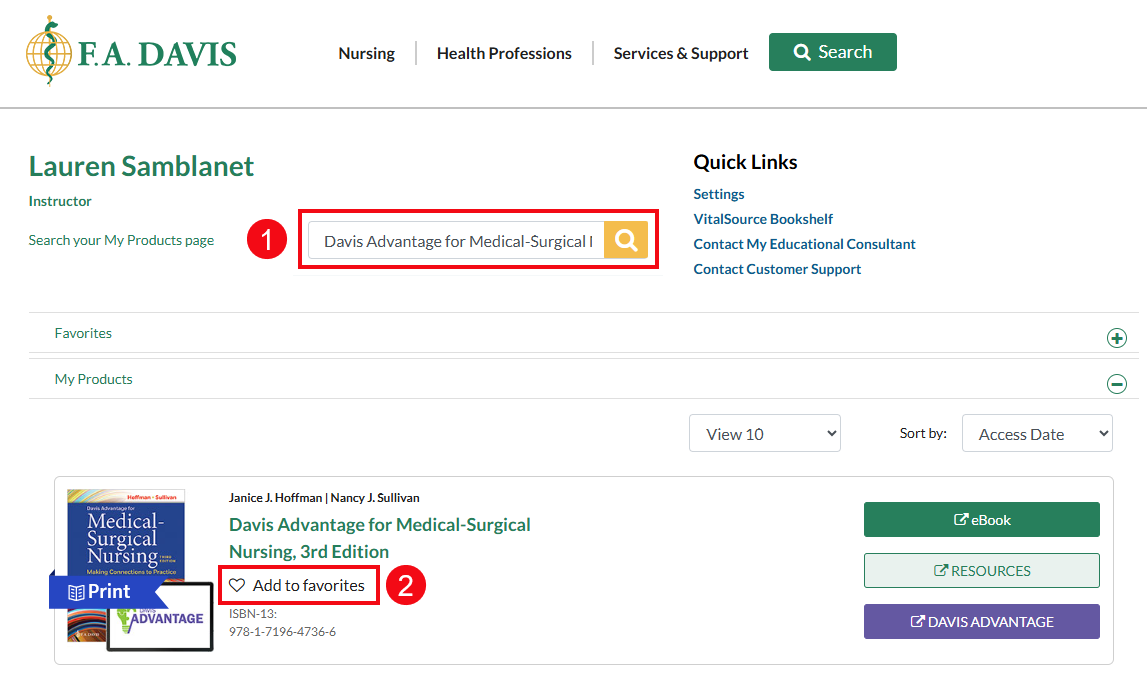
The heart icon will turn red once selected, indicating the title has been added to favorites.

Your favorites lists will be open by default when you access fadavis.com and the new title will appear on the list. You can access any resources associated with the title you have access to (online resources, ebook, or interactive digital product) from here.
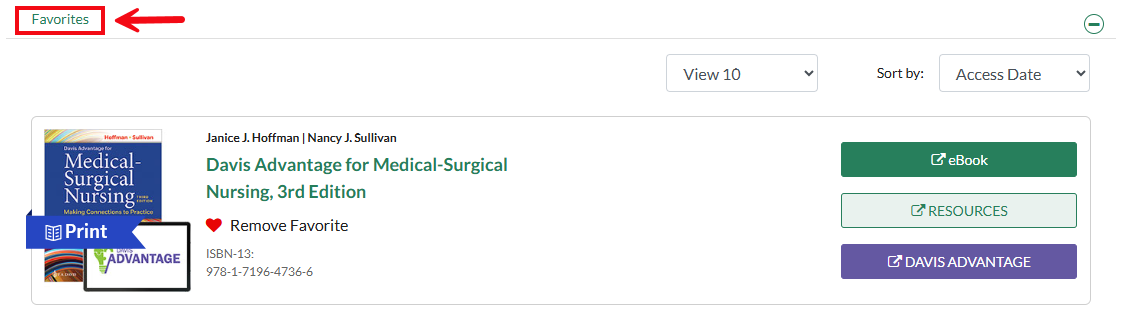
If you want to remove a title from your favorites, click Remove Favorite. You can also navigate to the product detail page by clicking the title of the book, then click Remove Favorite there.

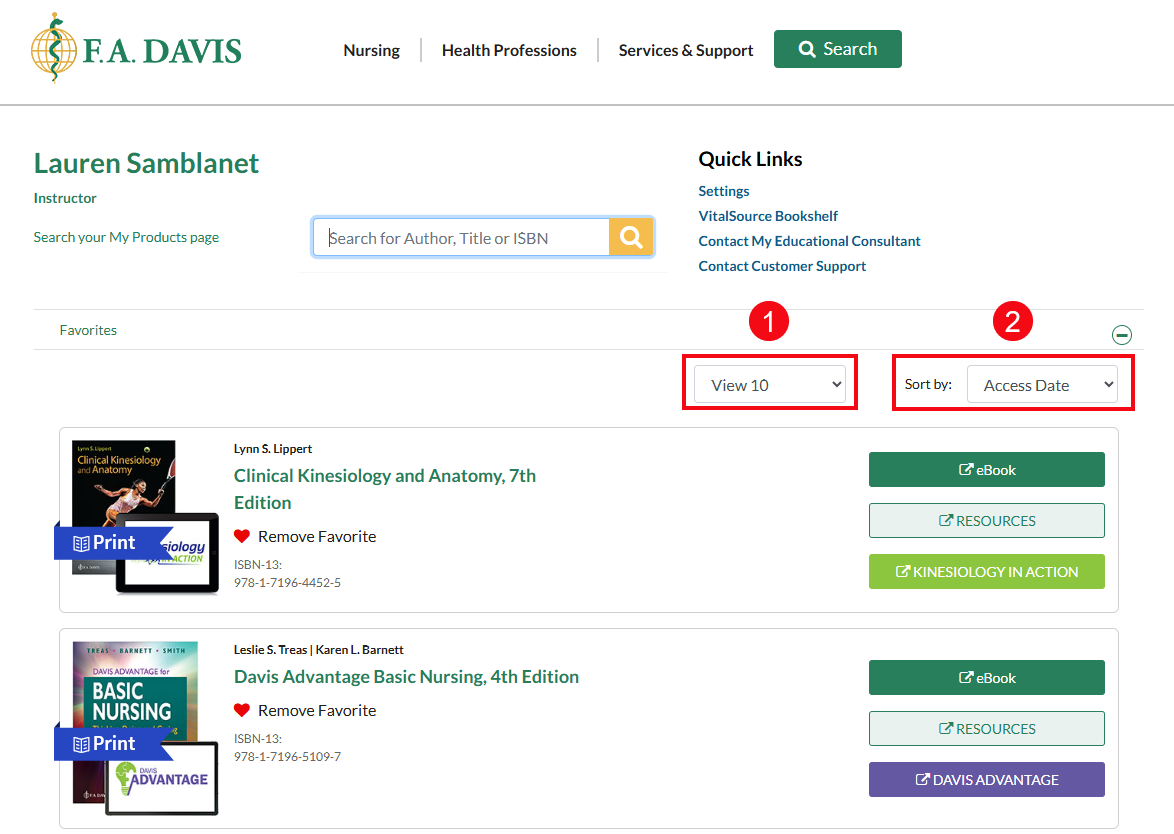
Use the search field to locate a specific title that appears in your favorites list or in your list of products. You can use the View drop-down to change how many products you're viewing (1). If you have more than five favorites on your list, you can also page through them by using the page number buttons at the bottom of the section, or opening the View dropdown to View 10, View 50, or View All the titles in your list. You can use the Sort by drop-down to change how the products are sorted (2).
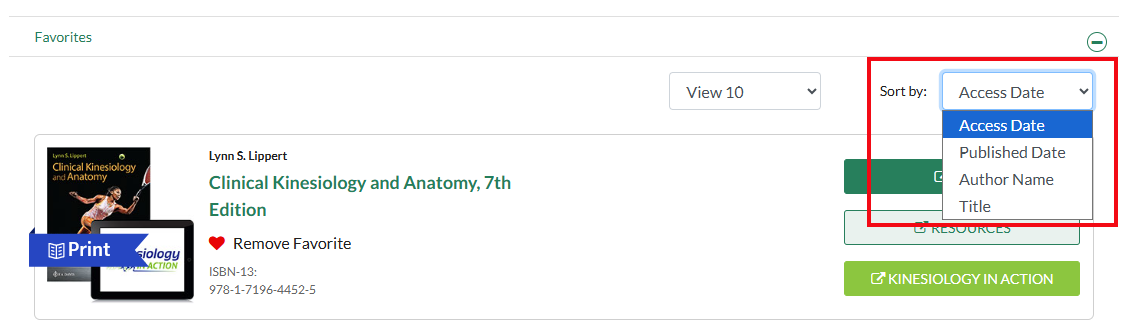
You can sort your list of favorites by your access date, alphabetically by title or author, or by the date the title published.