This article is for Davis 360 products, which includes Dosage Calc 360, Test Success 360 and Med Term 360. While we use Dosage Calc 360 as an example, this information applies to all Davis 360 products. Differences between products are labeled in bold.
Complete Assignments (Learn, Practice, Assess)
Each assignment – or module – in Davis 360 contains multiple topic areas. Each topic will include a Learn tab, for you to review the necessary content, and a Practice tab, with various exercises to reinforce your learning.
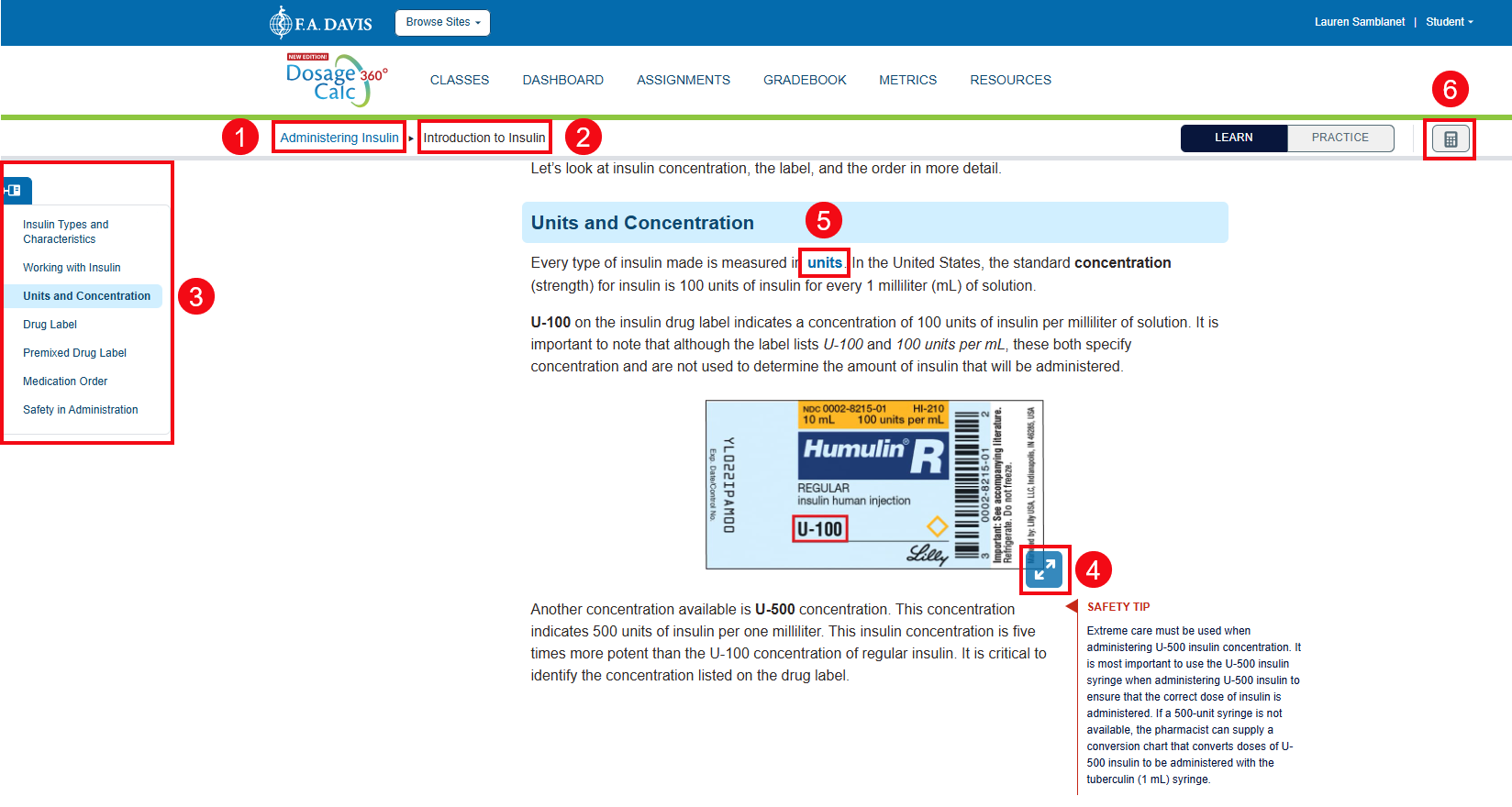
The below image provides an example of the Learn content for a topic. Note the following elements:
- Module Name
- Topic Name – each module contains multiple topics.
- Navigation panel – click to browse through a module's topics.
- Images – hover over an image, then click its arrow icon to view/enlarge the image.
- Key concepts – interact with select terms or phrases; click the link to reveal definitions and listen to audio pronunciations.
- In Dosage Calc 360 only: Calculator – click to make quick calculations.
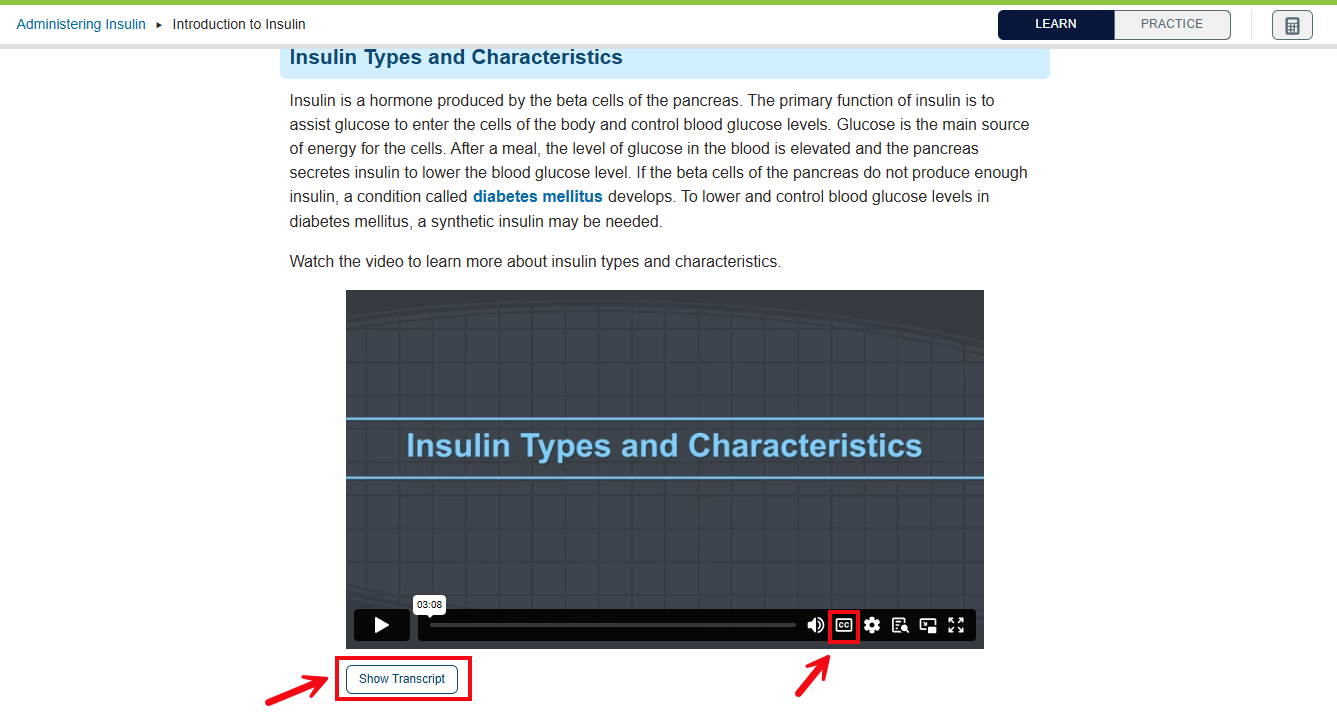
Select topics include animated lecture videos, with closed captioning and a transcript provided.
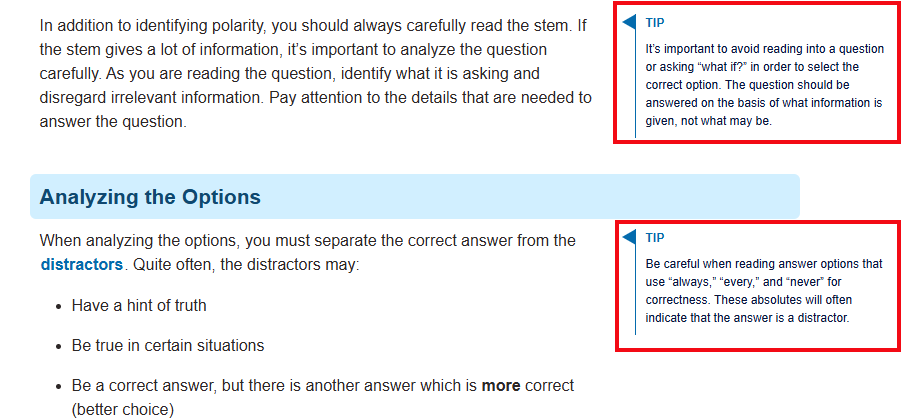
In Test Success 360, Learn sections often include Tips which offer tips about test taking.
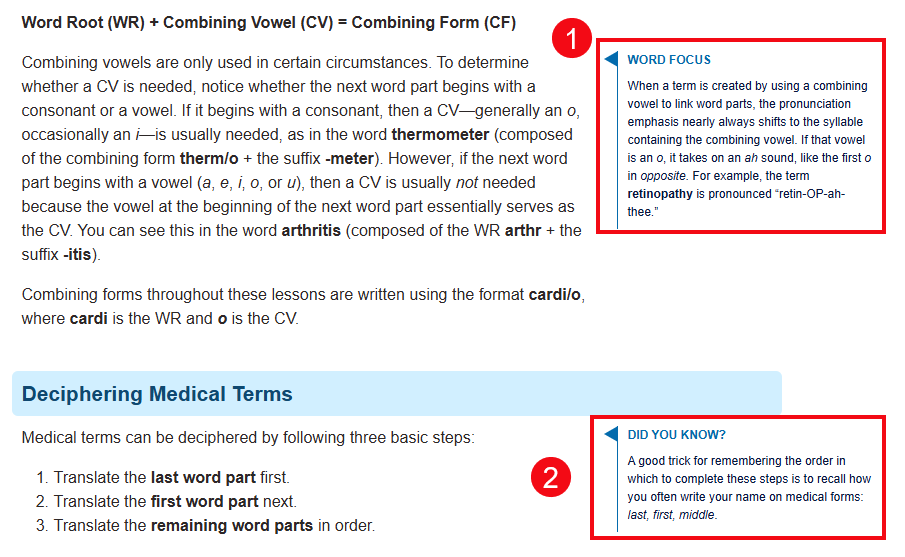
In Med Term 360, Learn sections often include Word Focus (1) and Did you Know? (2) which provide more information on select terms and related information.
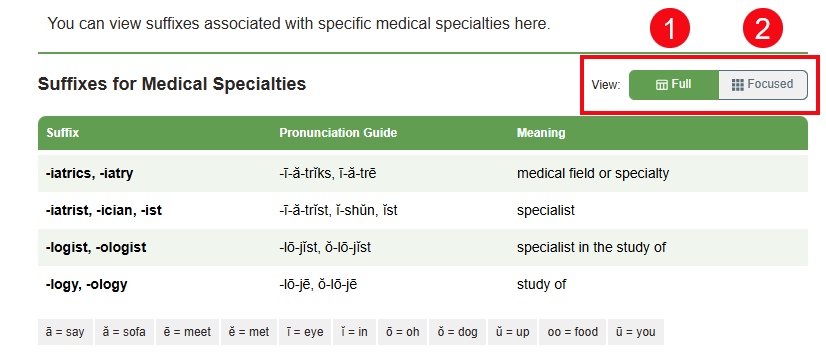
Some of the Learn sections in Med Term 360 include tables to help organize content. Several of these tables have two features, Full (1) and Focused (2). Full shows all the terms included in the table. Focused opens flash cards of individual terms from the table to help you study.
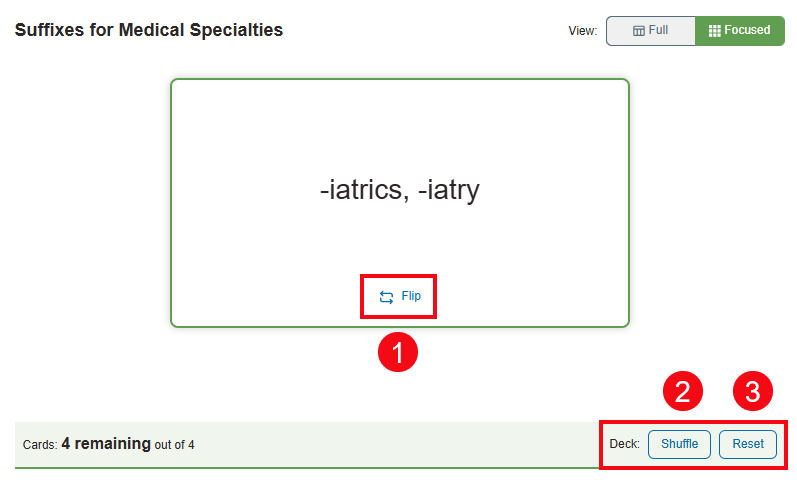
In the Focused view, use the Flip option to flip the flashcard (1). The Shuffle option (2) shuffles the terms rather than keeping them in the order found in the Full view. The Reset option (3) will allow you to move through the flash cards again.
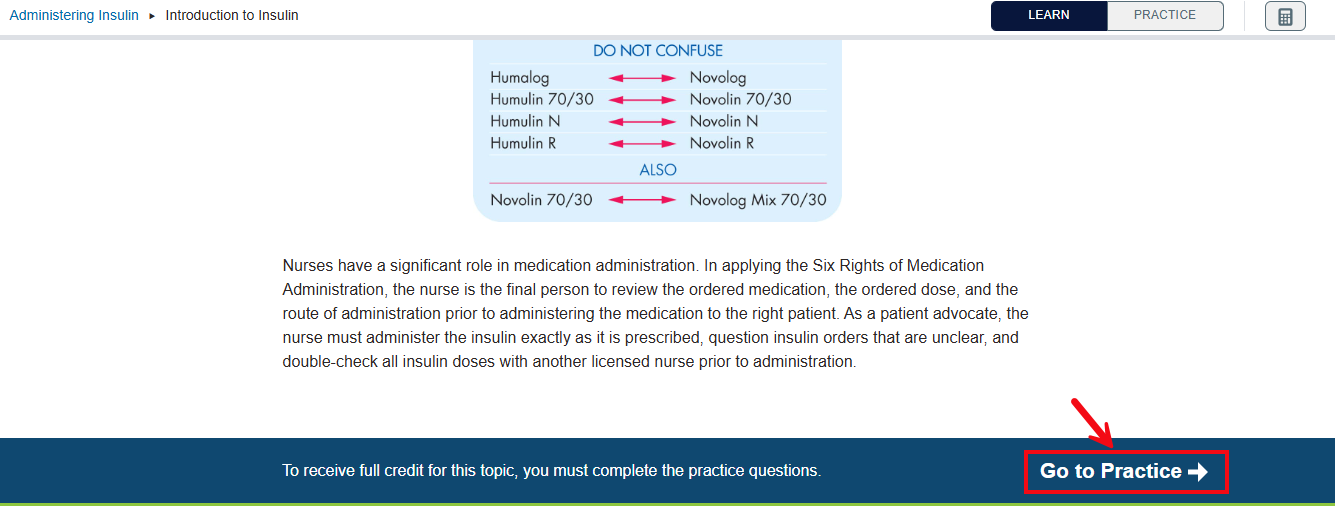
When finished reviewing the Learn content, click the Go to Practice link at the bottom to proceed to the accompanying Practice exercises.
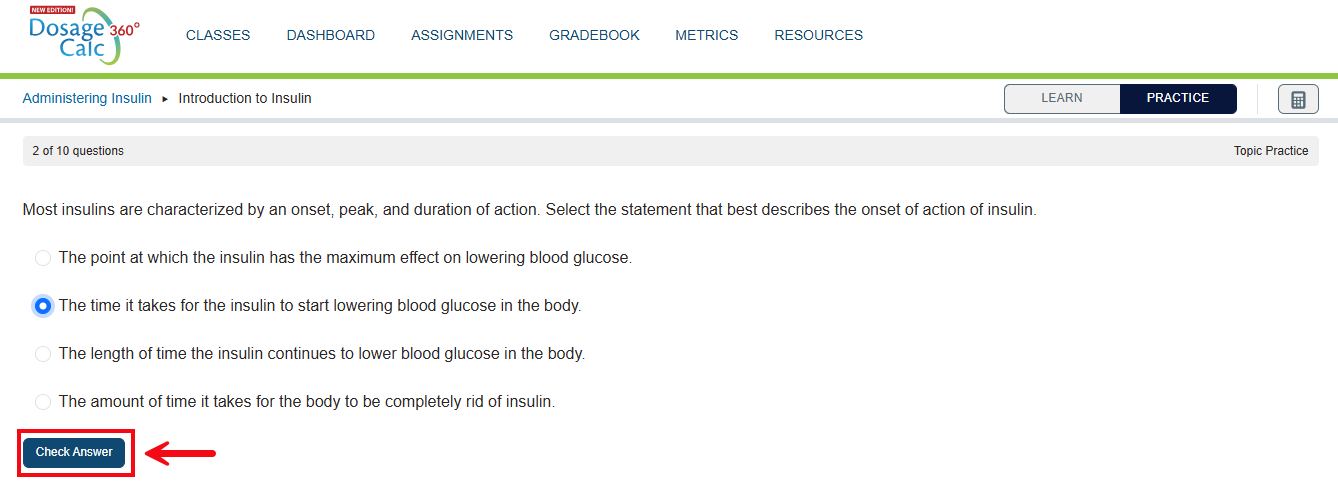
Practice exercises include different question types like multiple choice and fill-in-the-blank questions, among others. Choose or enter your response, then select Check Answer.
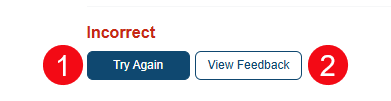
If marked Incorrect, you have the option to Try Again (1) for another attempt. You can click View Feedback (2) to see the feedback for the question.
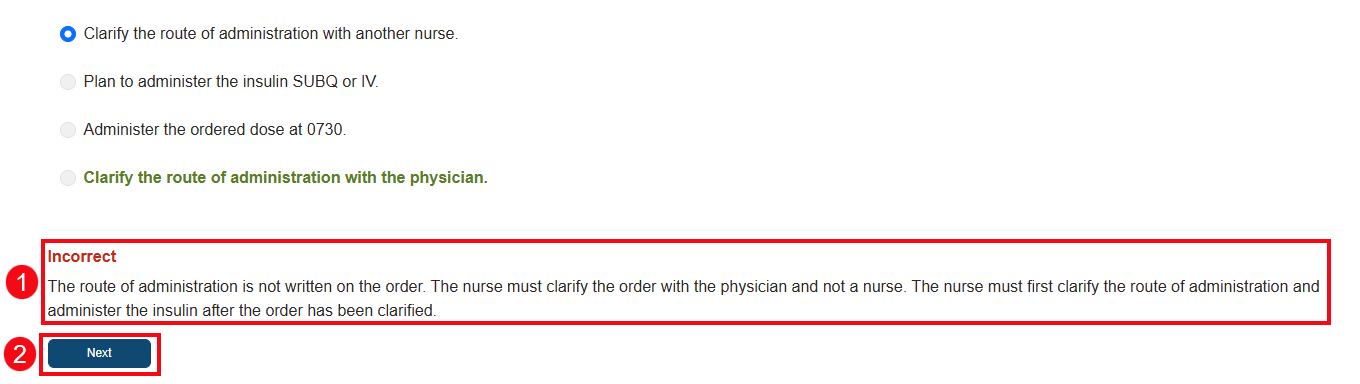
For each practice question, feedback/rationale (1) will display to show you how to find the correct answer. When finished reviewing, select Next (2) to move on.
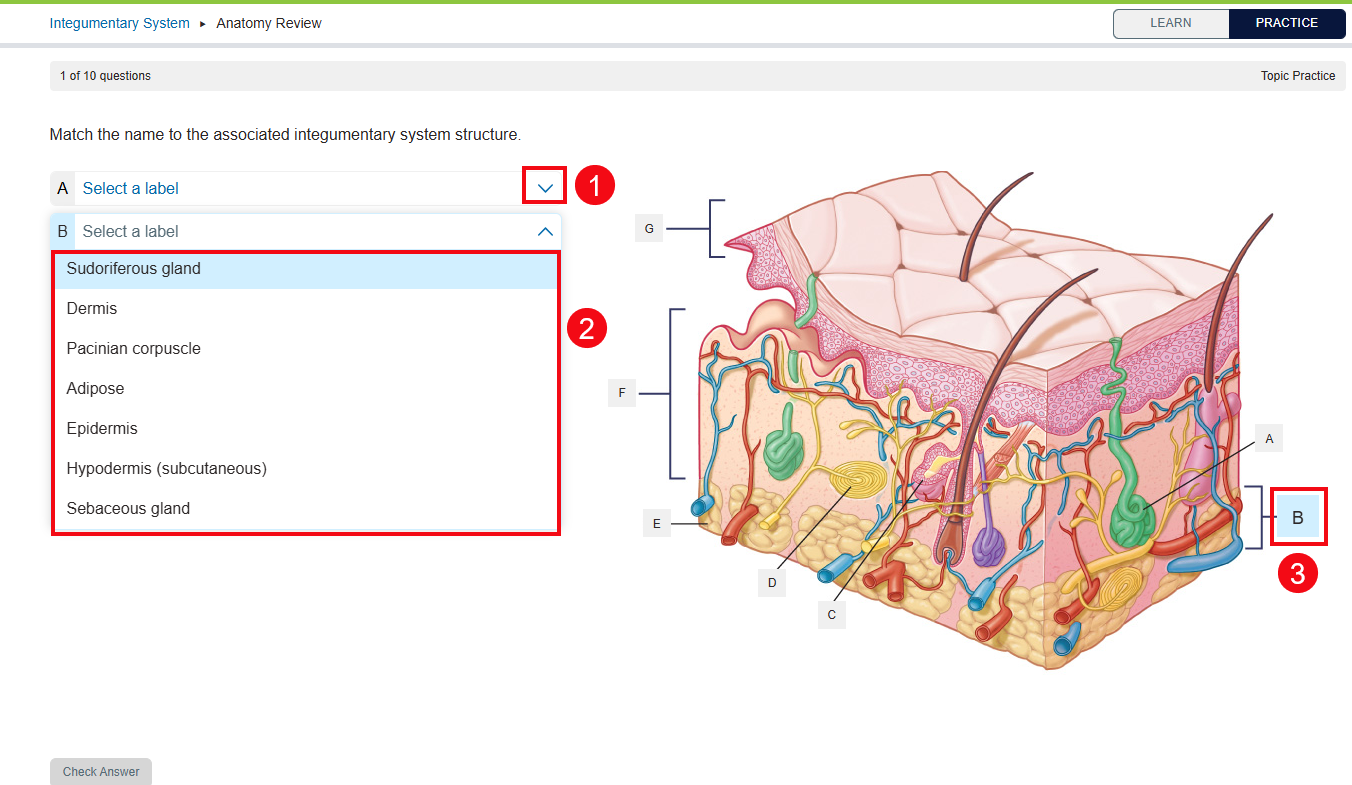
Med Term 360 includes Labeling questions like the one below. For these questions, click the arrow by each letter (1) to see the drop-down list of answer options (2) that you can select for the corresponding letter on the image (3).
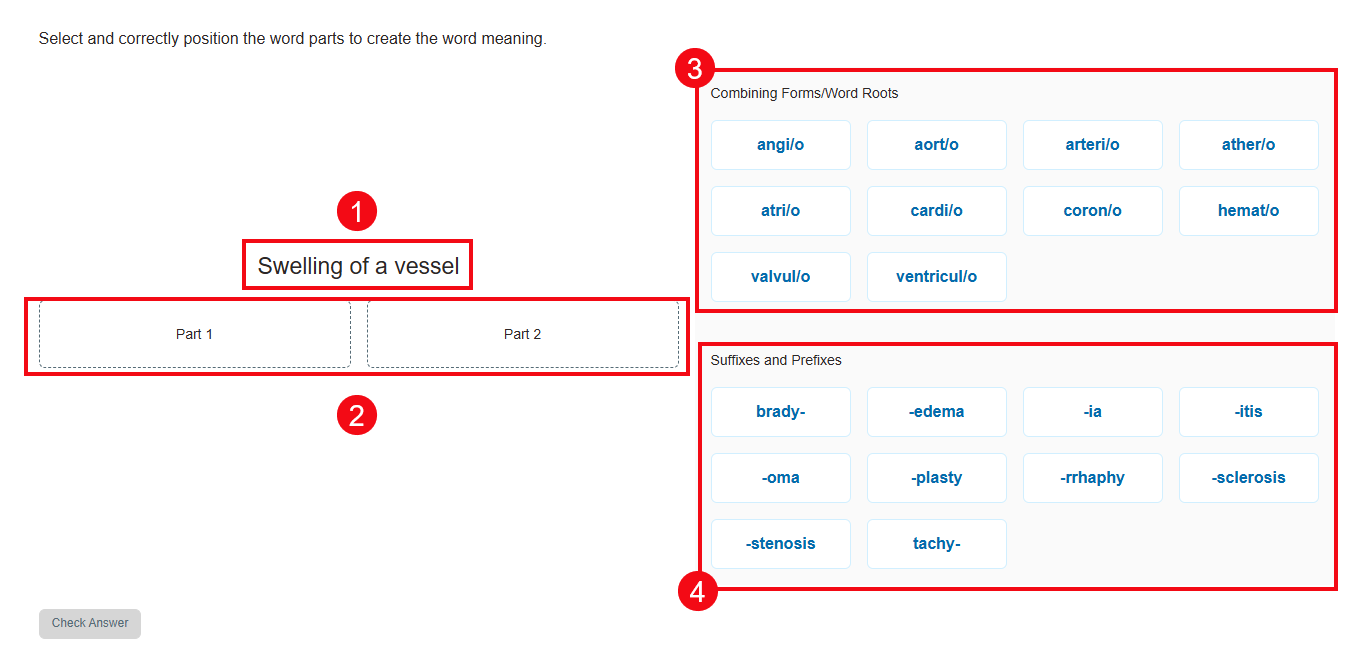
Med Term 360 also includes Word Building questions to help you learn the terminology. These questions show the meaning of the word you need to build (1). The word that holds that meaning is broken into two or more parts (2) and on the right side, there are Combining Forms/Word Roots (3) and Suffixes and Prefixes (4). Drag and drop the answers from the right side into the parts of the word on the left to build the term.
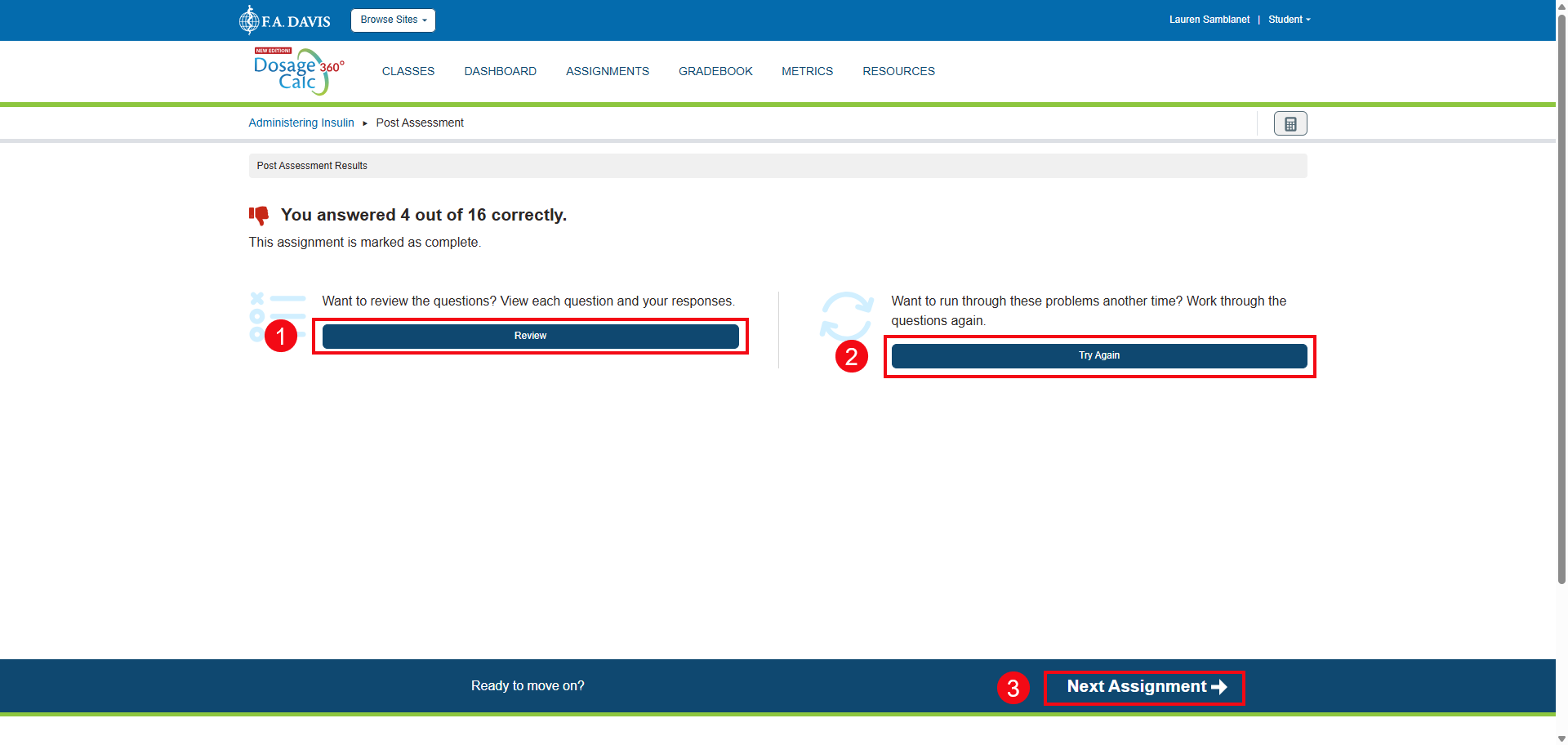
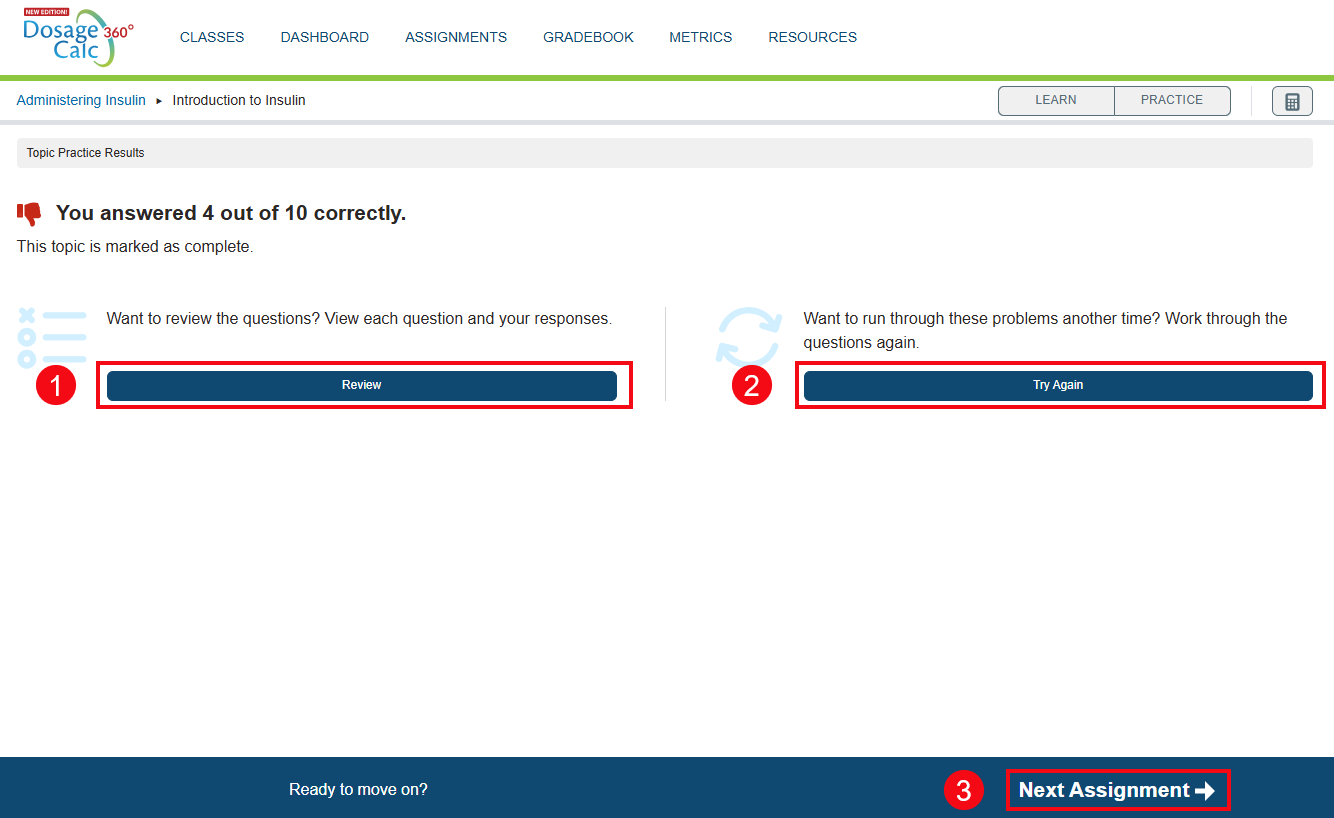
Once you have completed a set of Practice exercises, the Results screen will display, giving you the option to (1) go back and review rationales, (2) try again, or (3) proceed to the next topic.
Post Assessment
After you have completed all topics within a module (Learn and Practice tabs), you will take a Post Assessment. This assessment is designed to evaluate your understanding of the module content, and your score will be viewable by your instructor.
Be sure to read the directions for the Post Assessment! This will explain your instructor’s expectation for the assessment. For example, your instructor may allow you to take the assessment multiple times, taking your best score. Alternatively, your instructor may choose to only allow one submission.
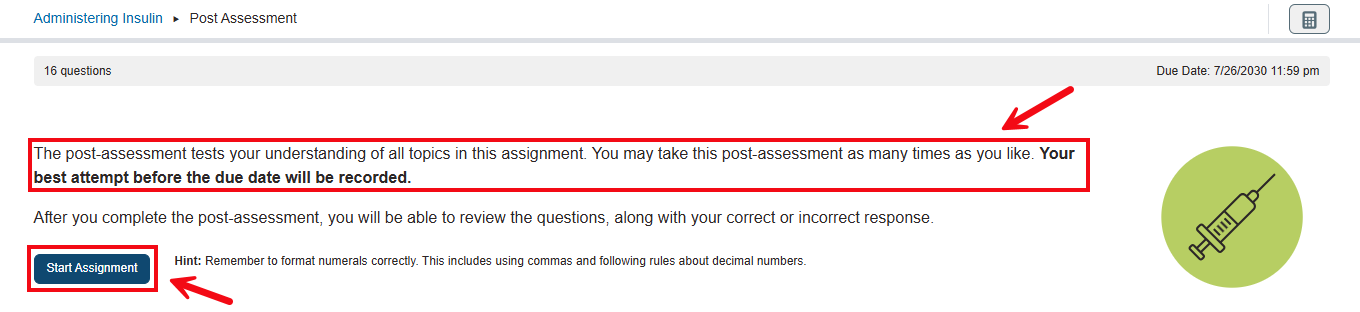
You won't be immediately shown the correct answers and answer rationales after each question in a Post Assessment.
Once you have completed a Post Assessment, the Results screen will display, giving you the option to (1) go back and review missed questions, or (2) proceed to the next module. If your instructor has chosen to allow multiple attempts, you will have the option to try the assessment again (3).