This article is for Davis 360 products, which includes Dosage Calc 360, Test Success 360 and Med Term 360. While we use Dosage Calc 360 as an example, this information applies to all Davis 360 products, with the exception of the information about Clinical Judgement Case Studies which are only available in Test Success 360.
Quizzing Assignments
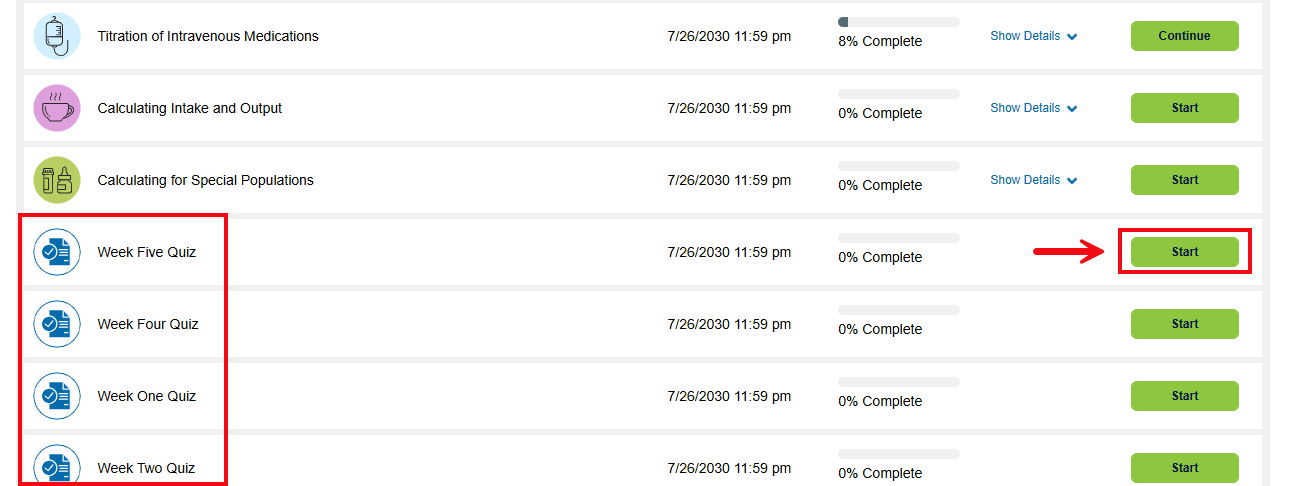
Your instructor may assign Quizzing Assignments, which may test your knowledge across multiple module areas. Quizzing Assignments will be denoted with a blue paper-and-checkmark icon. Click the Start button when you are ready to begin.
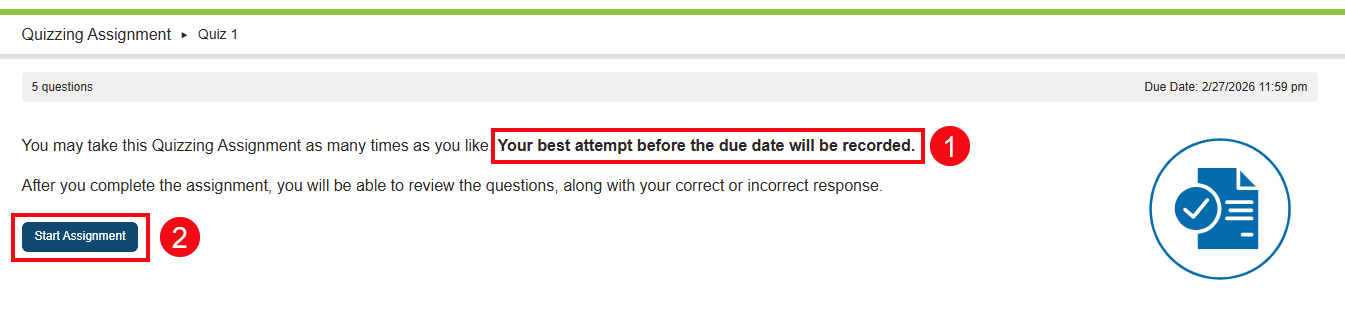
Each quiz begins with information on the grading rule your instructor has in place (1). For example, your instructor may allow you to take the assessment multiple times, taking your best score. Alternatively, your instructor may choose to only allow one submission. Once you have reviewed the grading rule, click the Start Assignment button to begin (2).
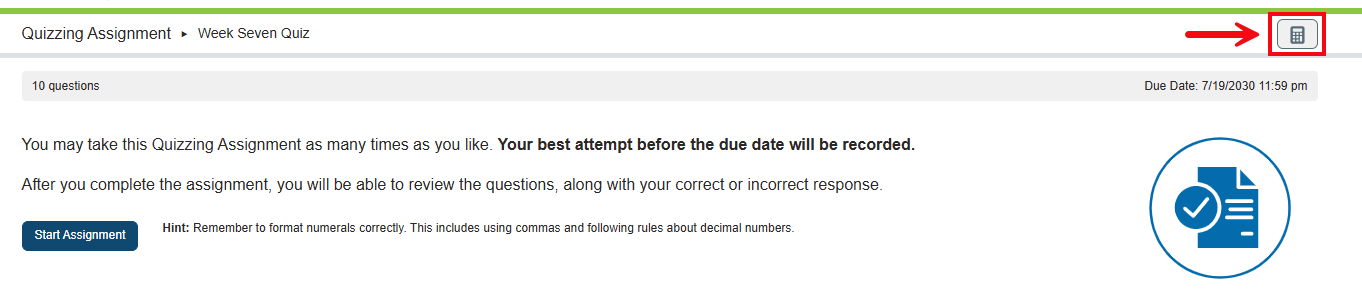
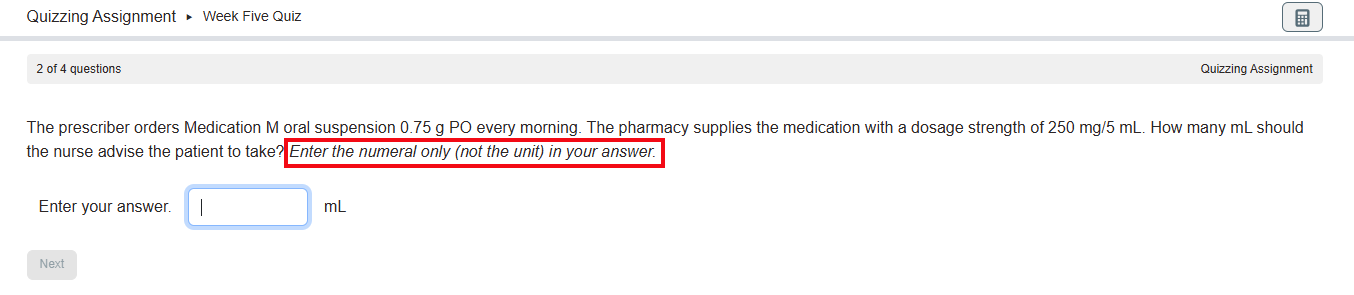
Note: In Dosage Calc 360, there is a calculator available to you in the upper right. The calculator feature is not available in Med Term 360 or Test Success 360.
Like the other exercises in Davis 360, Quizzing Assignments can include multiple choice, select-all-that-apply, and fill-in-the-blank questions, among others. Please remember to read the question and any directions carefully.
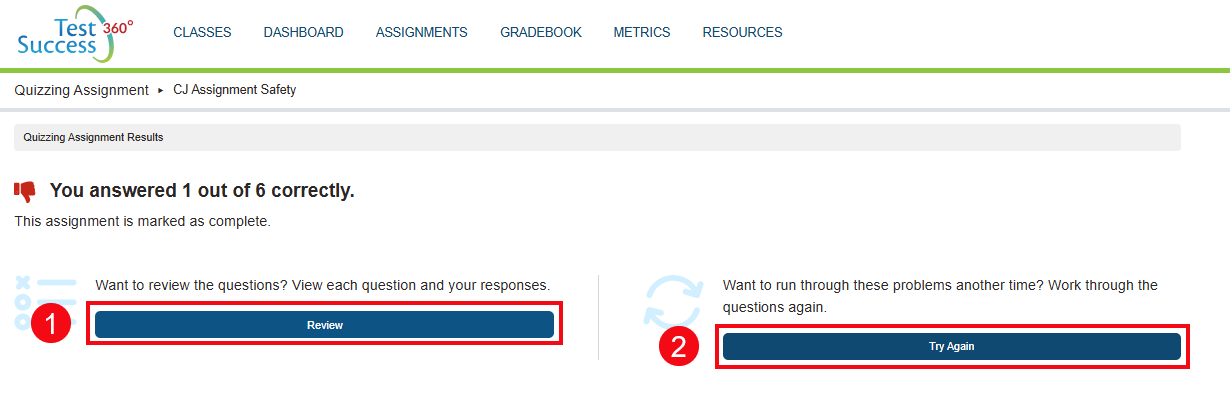
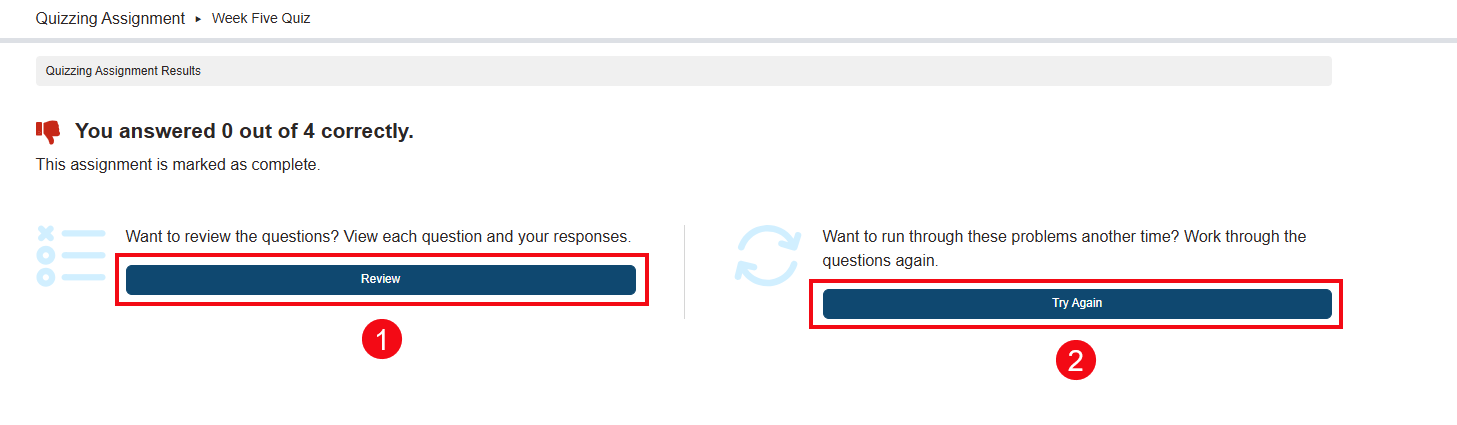
When you complete the quiz, you will have two options. You can click the Review button to review the answers, feedback and rationales (1). Clicking Try Again allows you to take the quiz again (2). Please note, if your instructor set the quiz to grade on first attempt, subsequent attempts at the quiz will not change your score in the gradebook.
Clinical Judgement Case Studies: Test Success 360 Only
Test Success 360 may include Clinical Judgement Case Studies. Clinical Judgment Case Studies are scenario-based exercises that walk you through patient situations and data, wherein you will be asked to make a series of clinical judgments about patient care. Each Clinical Judgement assignment contains question types based on the NCSBN Clinical Judgment Measurement Model and the Next Generation NCLEX® approach to assessing clinical judgment.
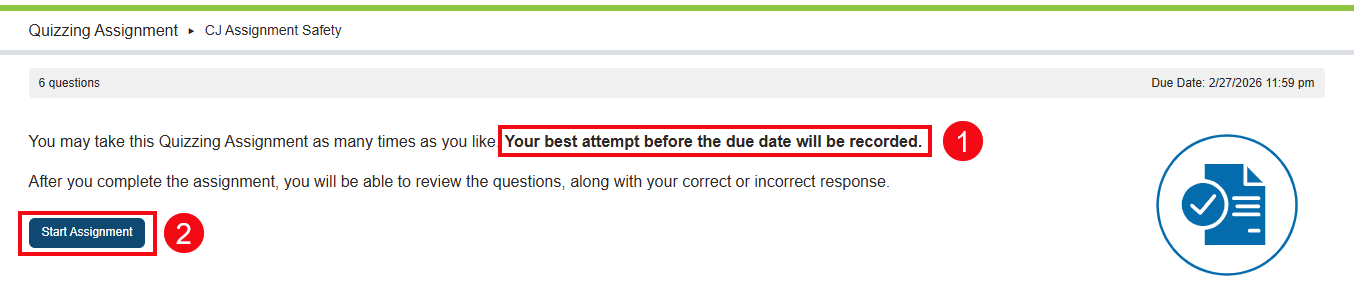
Each case study begins with information on the grading rule your instructor has in place (1). For example, your instructor may allow you to take the assessment multiple times, taking your best score. Alternatively, your instructor may choose to only allow one submission. Once you have reviewed the grading rule, click the Start Assignment button to begin (2).
You work through a Clinical Judgement assignment by using information found in its patient chart, which will be modeled after charts used in Next Generation NCLEX cases. The chart for a Clinical Judgment assignment includes clickable tabs for History and Physical Assessment, Nurses’ Notes, Vital Signs and Lab Results. You'll use the information found in the patient chart of your Clinical Judgment assignment (1) to answer questions found to its right (2). After answering a question, you will click the Next button (3) to progress to the next question.
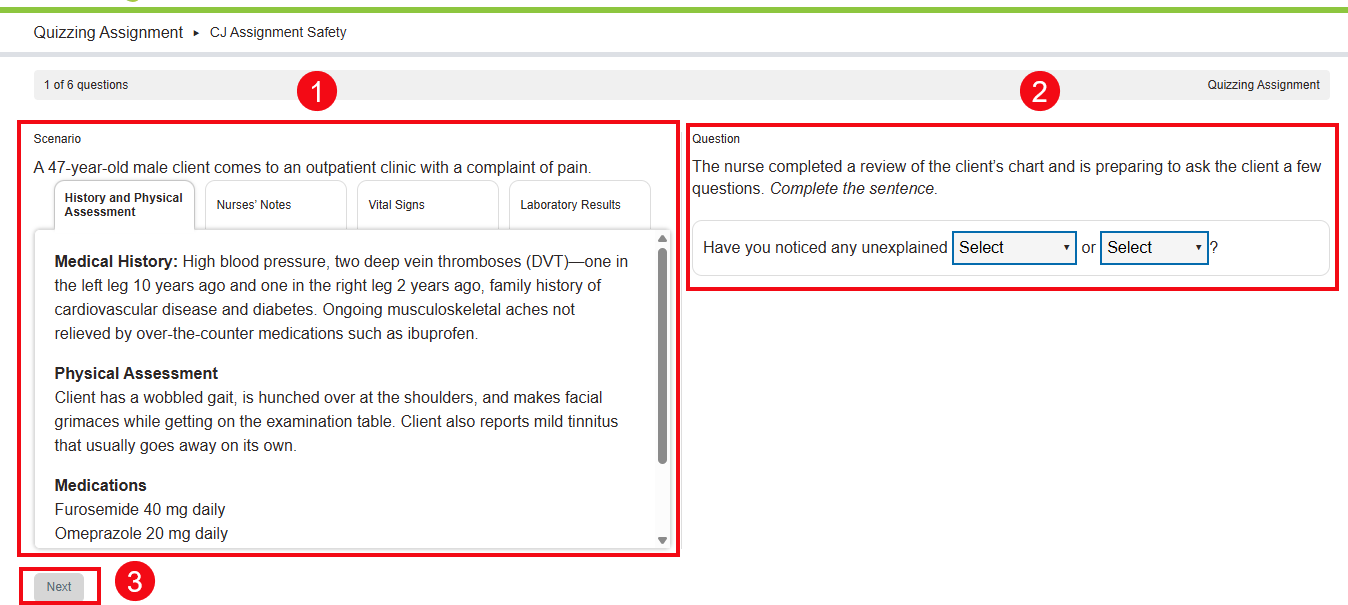
The History and Physical Assessment tab of your chart will be populated from the beginning of your Clinical Judgment Case Study, though the other tabs in your patient chart might start completely empty or with only a small amount of information. You'll click tabs in your patient chart to see the contents of that tab, and your patient chart will populate with additional data as you progress through a Clinical Judgment Case Study. You can check your assignment's patient chart at any time, and we especially recommend checking for new information in your chart after clicking the "Next" button to progress question-by-question.
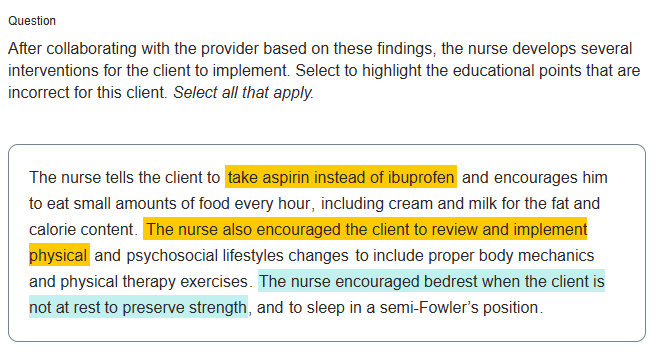
While working through a Clinical Judgment Case Study, you'll encounter five different question types. Below, you'll see an example of a Hotspot question, wherein you'll click each finding you wish to select. Once selected, the finding will be highlighted in orange. When hovering on a finding to consider clicking it, text will be highlighted in pale blue. If you want to de-select a previously-selected finding, click it again.
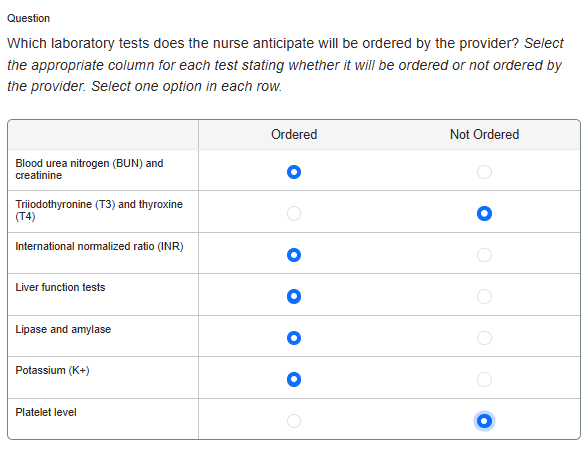
For grid questions, you'll click checkboxes to denote your answers. The question will specify whether you can click a single or multiple answers in the grid's rows.
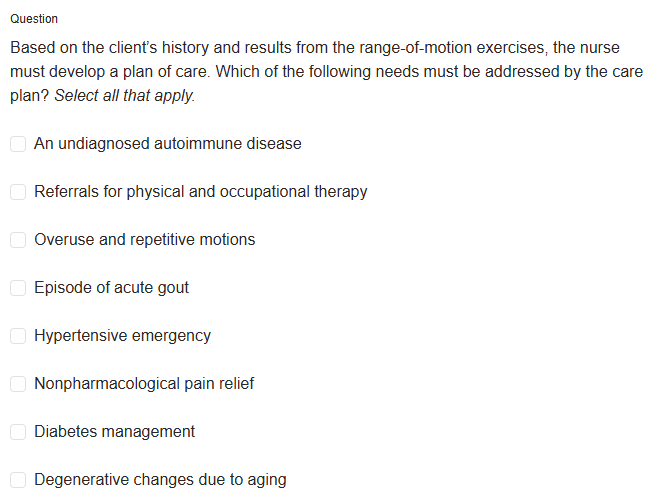
Select-all-that-apply questions also require you to click checkboxes to denote your answers.
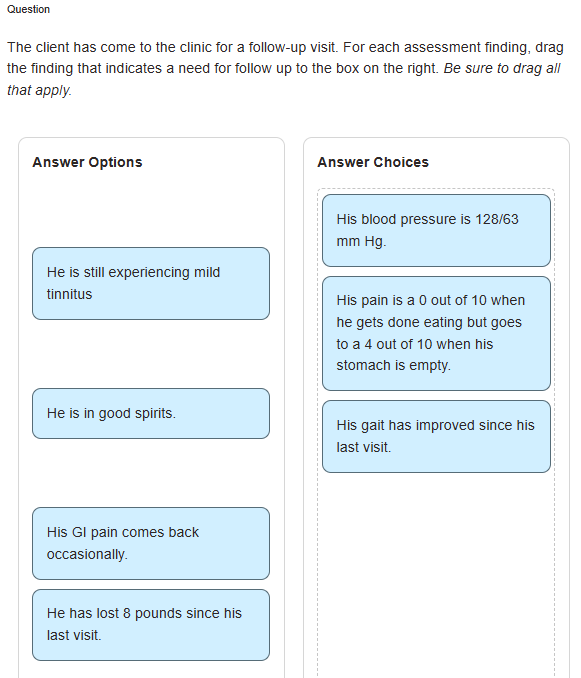
The drag-and-drop questions you'll find in a Clinical Judgment assignment will instruct you to drag over all that apply, drag items into a sequence, or drag items in regards to priority.
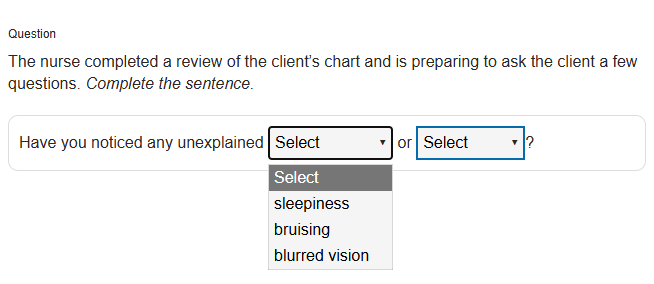
Cloze questions will give you a statement to complete by choosing responses from dropdown menus.
When you complete the Clinical Judgement Case Study, you will have two options. You can click the Review button to review the answers, feedback and rationales (1). Clicking Try Again allows you to take the quiz again (2). Please note, if your instructor set the quiz to grade on first attempt, subsequent attempts at the quiz will not change your score in the gradebook.