You are using an unsupported browser. Please update your browser to the latest version on or before July 31, 2020.
close
You are viewing the article in preview mode. It is not live at the moment.
Home > Medical Language Lab > Student > Student: Access Assignments: Medical Language Lab
Student: Access Assignments: Medical Language Lab
print icon


To access your Assignments, click the "View" button next to your class. 

 

Under "select a class," the "view" button to the right of a student's class is highlighted with a bounding box and an arrow.


On your class Dashboard, the What’s Next panel will display up to three assignments at a time, based on due date. To see a full list of your assignments, select View Assignments.
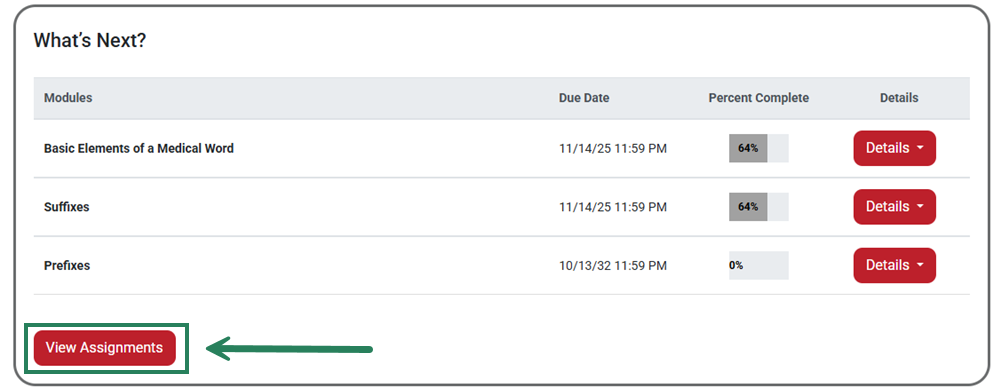
 

In the "What's Next?" box on the dashboard page, the next three assignments due are shown. At the bottom, the "view assignments" button is highlighted.


The Assignments tab helps you track due dates and assignment completion. The order of topic modules displayed on your Assignments tab is the order in which you will proceed through the course's assignments.
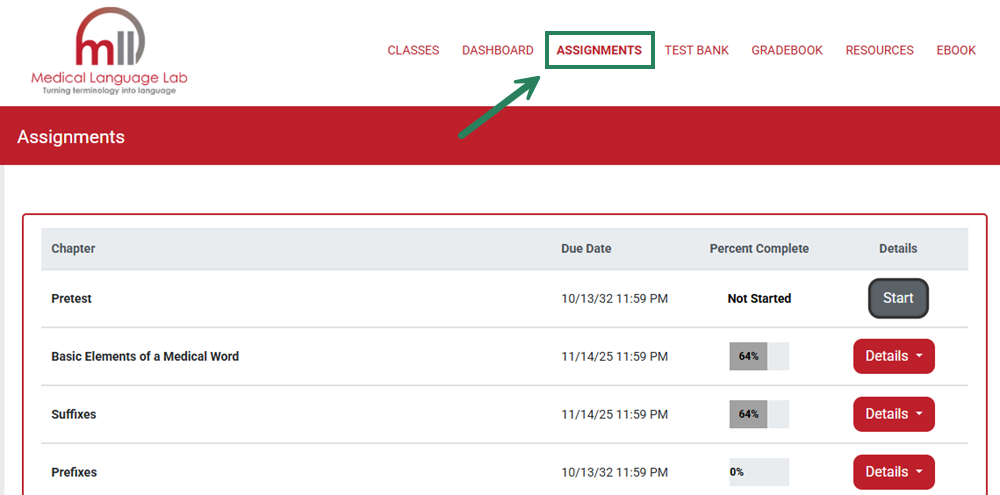
 

In the toolbar at the top of the page, the "Assignments" tab is highlighted with a bounding box and an arrow.


View Topic Details

To begin working on an assignment, first select the "Details" button (1) to reveal your progress on each of the module’s sections or individual activities. Then click on the "Start" button (2) next to an exercise to begin working on it.
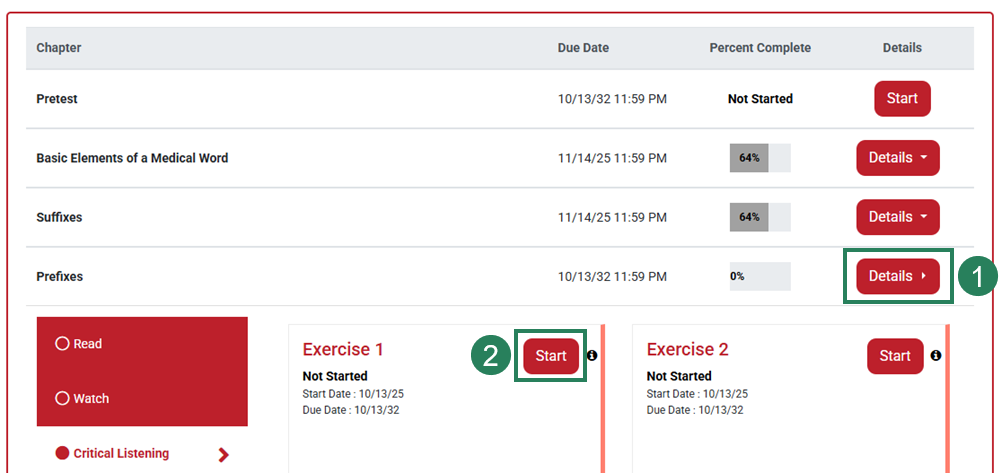
 

In the list of assignments, the "Details" button to the right of a module is highlighted with the number 1 next to it. Below that, in the open assignment, the "Critical Listening" section is open and the "Start" button next to Exercise 1 is highlighted with the number 2.


Each module in Medical Language Lab contains multiple activities. The activities within each module can be customized by your instructor and may vary depending on the text.


Two lists of Medical Language Lab activities from two different textbooks are shown side by side. The list on the left reads "Read, Watch, Critical Listening, Response, Generation, Practice, Review." The list on the right lists "Read, Watch, Critical Listening, Response, Pronounce, Practice, Review."


Topics that you have already finished will be marked "Completed." To go back and practice a previously completed exercise, select the "Review" button.
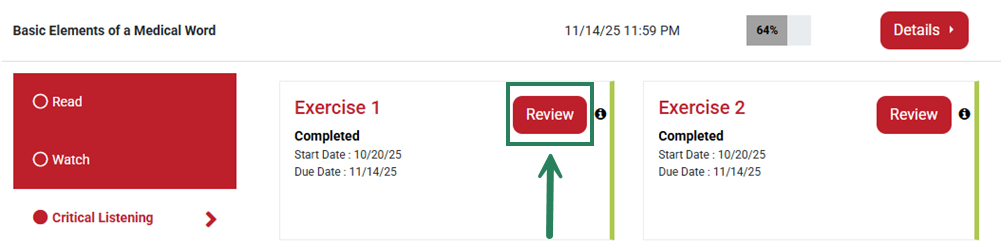
 

A completed Critical Listening assignment is displayed, with the "Review" button next to the assignment highlighted with a bounding box and an arrow.


Tollgate Approach (Select Users) 
 

If your instructor has designated the Tollgate approach for your class, you may notice an active assignment with the Start button deactivated. The Tollgate approach means that an assignment will not open until the assignment before it is completed. You must complete the first assignment to unlock the next one, and so on.

scroll to top icon