You are using an unsupported browser. Please update your browser to the latest version on or before July 31, 2020.
close
You are viewing the article in preview mode. It is not live at the moment.
Home > Medical Language Lab > Student > Student: Access Medical Language Lab
Student: Access Medical Language Lab
print icon

Your starting point is FADavis.com. In the top-right corner, you will see your name if you are already logged in. If you do not see your name, click "Log In." 
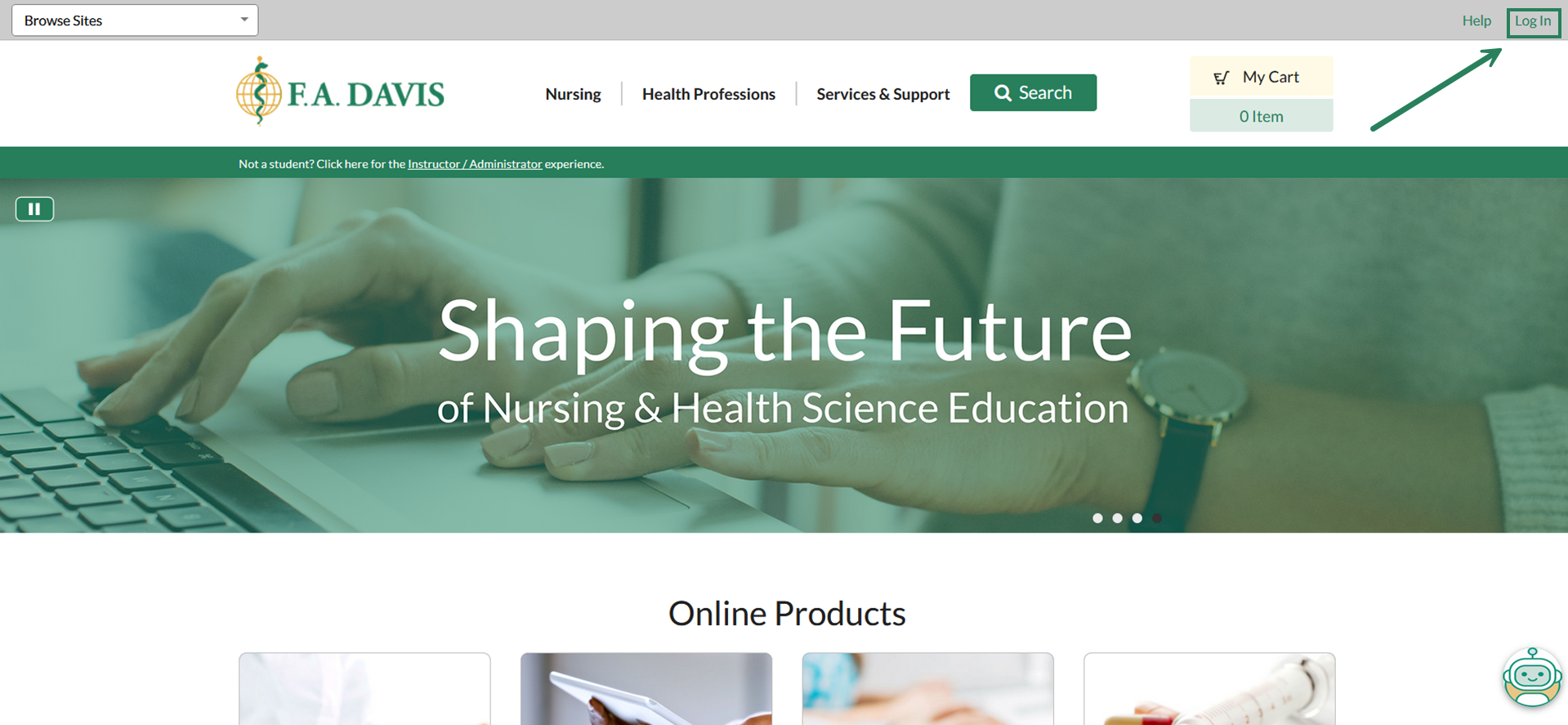
 

The FADavis.com home screen is open, with an arrow pointing to the "log in" button in the upper right hand corner.


If you know your login details, enter your email and password and click "Log In" (1). If you know you have an account but you have forgotten your password, click "Forgot Password?" (2) to reset your password. 


If you do not have an existing FADavis.com account, click "Create Account" (3) to make one. 
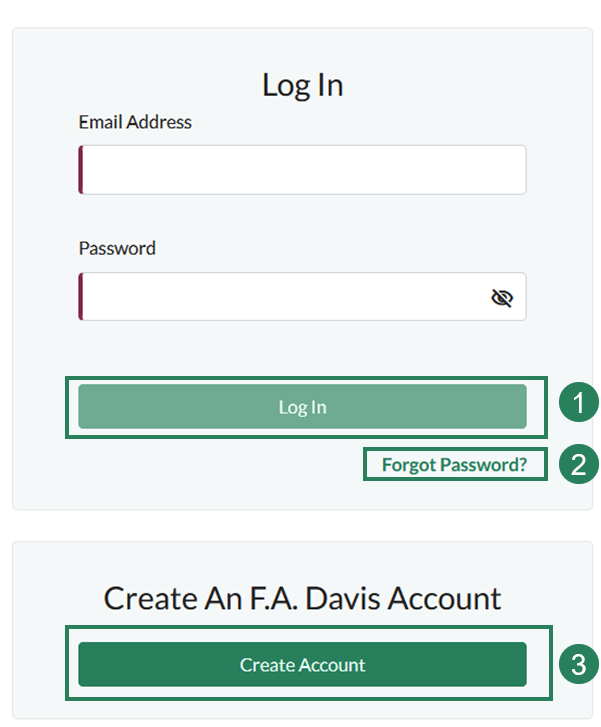
 

The login page is open, with an option to enter an email and password. Number 1 highlights the "login" button, 2 highlights the "forgot password" button, and 3 highlights the "create and account" button.


If you need to create an account, fill out all required fields. Please note that we recommend using your institutional email address (1) if possible.


Click "Create Account" (2) to create your account.
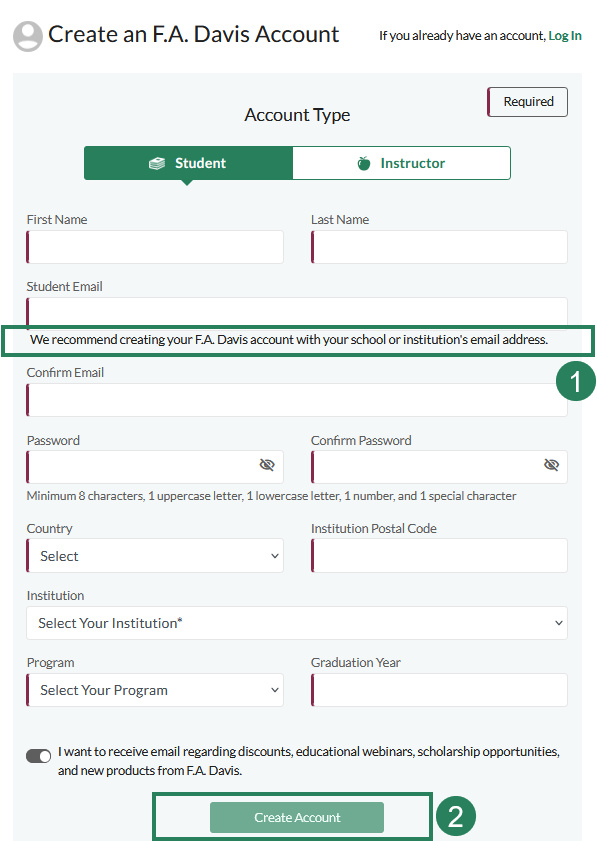
 

The "create an account" page is open, and a recommendation to create your FA Davis account using your school email address has been highlighted with the number 1. At the bottom of the page, the "create account" button has been highlighted with the number 2.


If you have purchased a new book, your Access Code will be on the inside cover. Enter your Access Code in the box that reads "Enter access code," then click "Redeem."
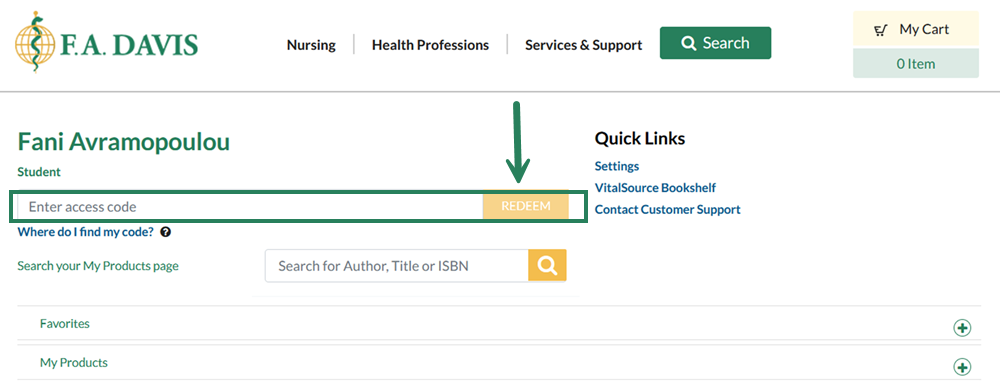
 

The student account homepage is open, with a bounding box highlighting the "enter access code" text area, and an arrow pointing to the "redeem" button to the right of the text area.


Once logged in at www.FADavis.com, the “My Products” page will display. Locate your Medical Language Lab title, and click the "Resources" button (1) to see available student resources or click the "Medical Language Lab" button to access that platform (2).
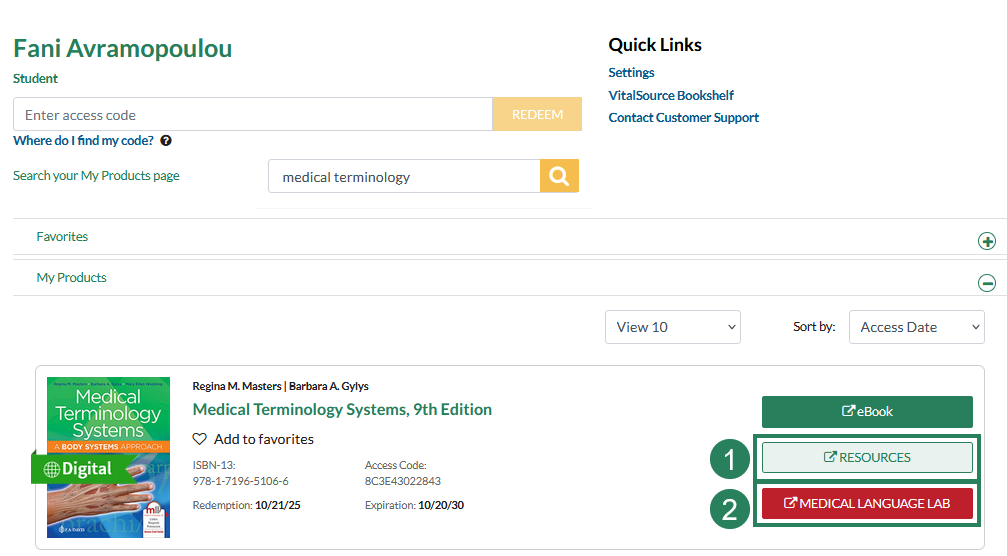
 

The "my products" page is displayed with bounding box number 1 indicating the "resources" button next to a textbook and bounding box number 2 indicating the Medical Language Lab button.


When browsing your My Products list, you can adjust the View filter to display 10, 50 or all products you have access to. You can also sort by Access Date (most recent), Published Date (most recent), Author’s Name (A-Z), Title, or Package.
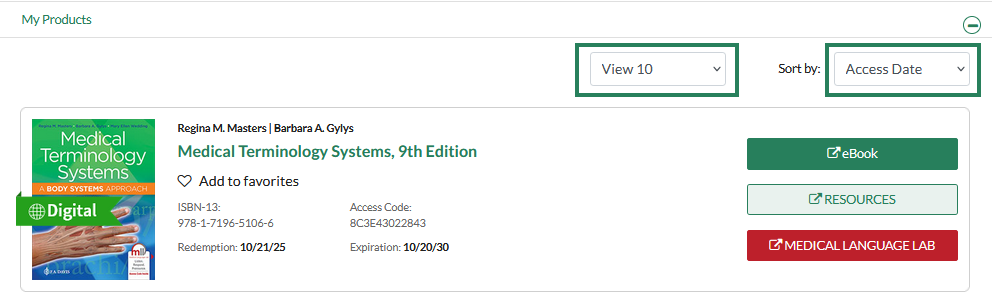
 

The "my products" page is displayed, with a bounding box highlighting the option to change the display settings dropdown menu, and another bounding box highlighting the "sort by" dropdown.


Or, you can use the “Browse Sites” dropdown menu at the top-left of any FAD page to access Medical Language Lab.
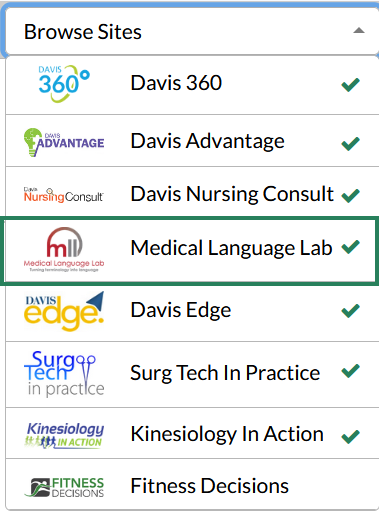
 

The "browse sites" dropdown on the top right of the FADavis.com home screen is displayed, and the button for Medical Langauge Lab is highlighted with a bounding box.


You may have access to more than one title in Medical Language Lab. Click on a textbook to get started.

scroll to top icon