You are using an unsupported browser. Please update your browser to the latest version on or before July 31, 2020.
close
You are viewing the article in preview mode. It is not live at the moment.
Home > General / FADavis.com > Instructor > Instructor: Reset Password
Instructor: Reset Password
print icon

You can reset or change your password at any time.

Forgot Password


If you forget your password, once on the Log In page, click Forgot Password?
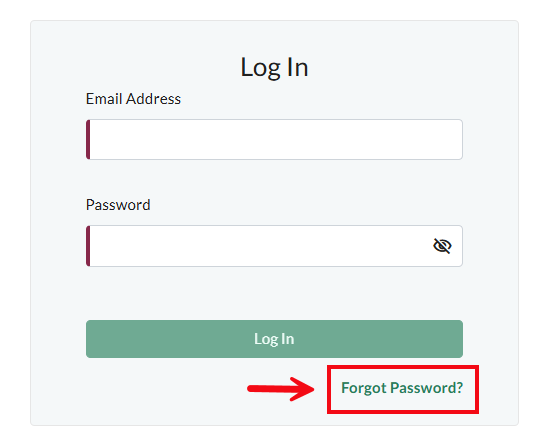
 

A screenshot of the Log In page with a red box and arrow highlighting the Forgot Password link.

On the Forgot Password page, enter your e-mail address. A link to reset your password will be e-mailed to you. Follow the instructions in the email to reset your password. If the e-mail doesn’t arrive, please check your spam folder. 
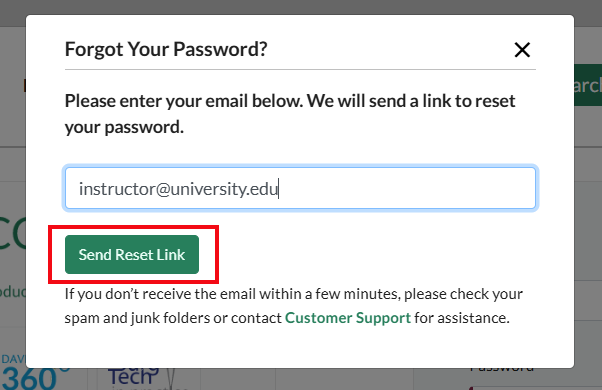
A screenshot of the Forgot Password pop-up with a red box highlighting the Send Reset Link button.      


Change Password


If you'd like to change your password, log into your account. Click your name in the top right of the page.

A screenshot of fdadavis.com with a red box and arrow highlighting the name option.         

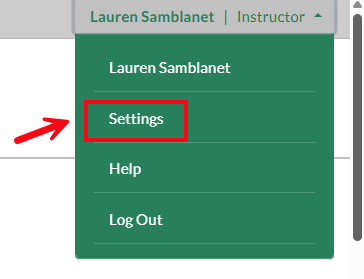
Then click Settings.
 

A screenshot of the options under username, with a red box and arrow highlighting the Settings option.

Next, click Change Password in the Contact Information section.
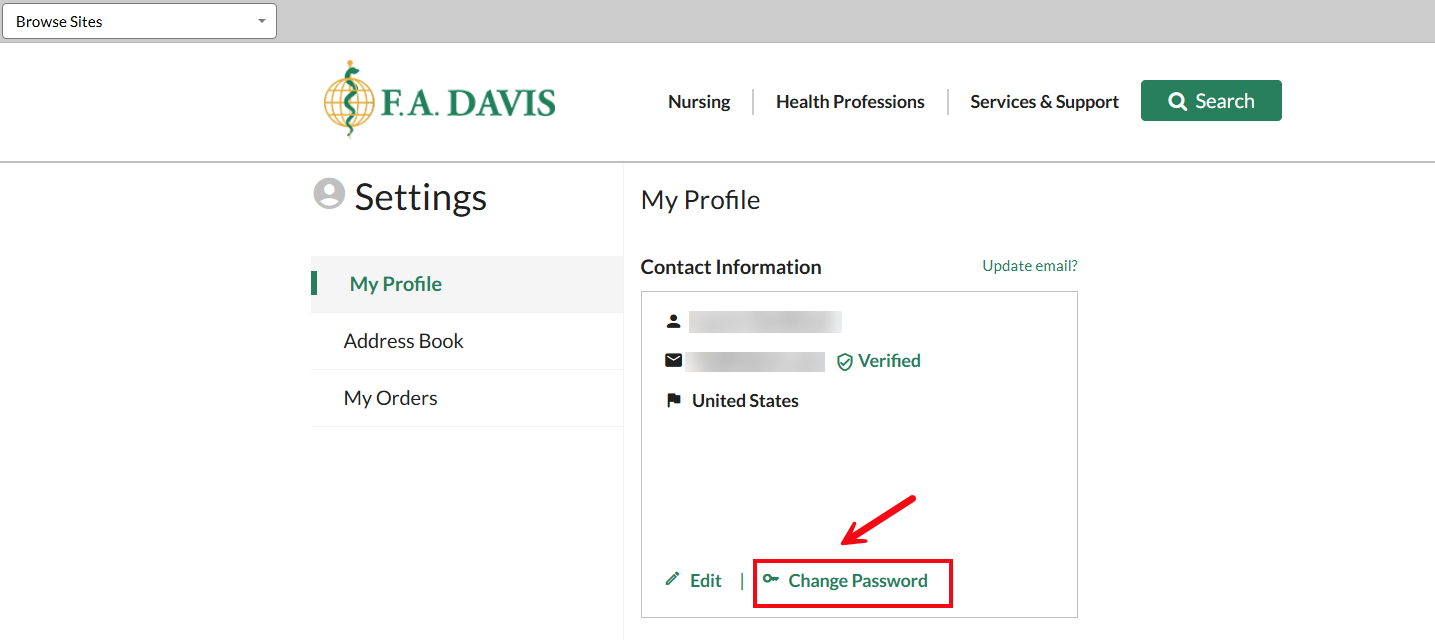
A screenshot of the Settings page with a red box and arrow highlighting the Change Password option.

Enter the new password and confirm the password (1). Once completed, click the Save button (2). 
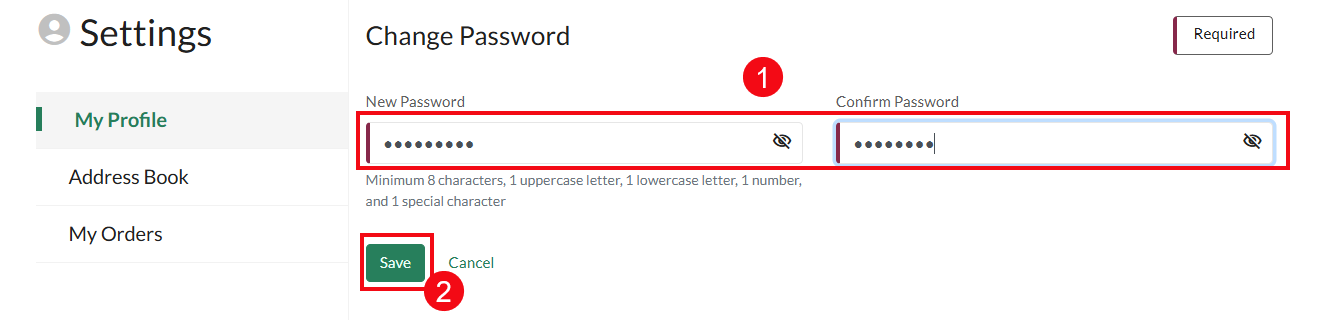
A screenshot of the Change Password page with red boxes and arrows highlighting the New Password and Confirm password fields (1) and the Save button (2).


scroll to top icon