You are using an unsupported browser. Please update your browser to the latest version on or before July 31, 2020.
close
You are viewing the article in preview mode. It is not live at the moment.
Home > Davis Advantage > Instructor > Instructor: Clone a Class: Davis Advantage
Instructor: Clone a Class: Davis Advantage
print icon

To clone your class, click the settings wheel (1) to the right of your class. 
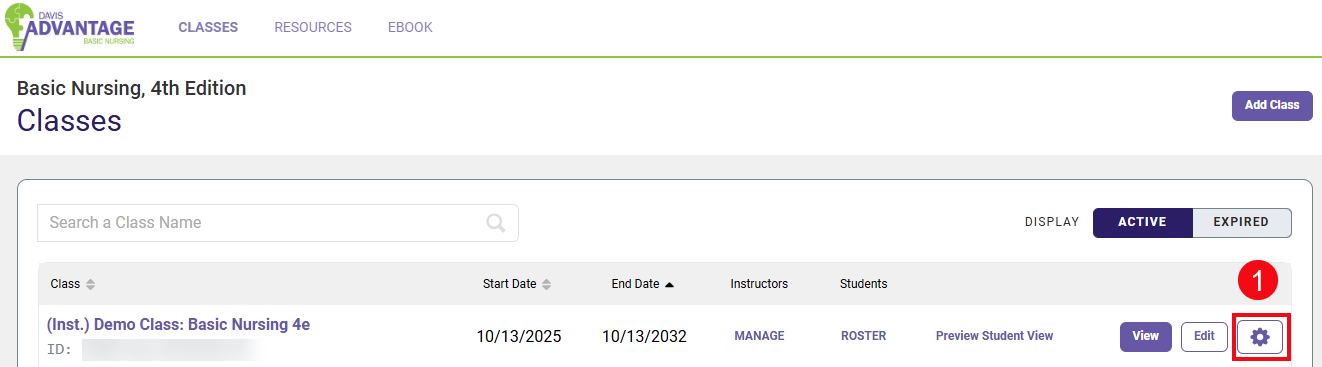
 

Screenshot of Davis Advantage instructor Classes page with a red box and number highlighting the wheel icon (1).


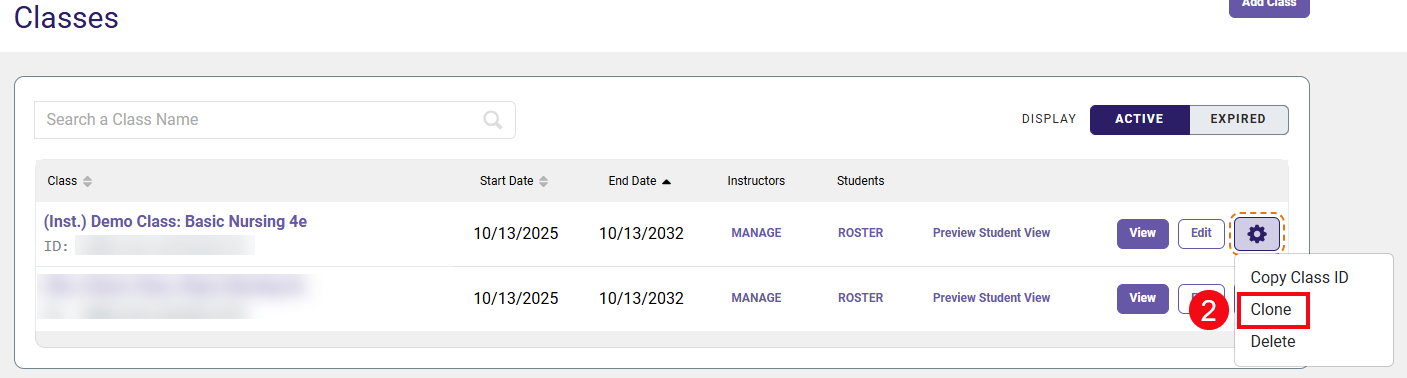
Next, click Clone (2).


Screenshot of Davis Advantage instructor Classes page with a red box and number highlighting the Clone option (2).


On the "Create Class" step of your cloned class, enter a unique Class Name (3), Start Date (4), End Date (5), select your Time Zone (6) then click Next Step (7) to continue.
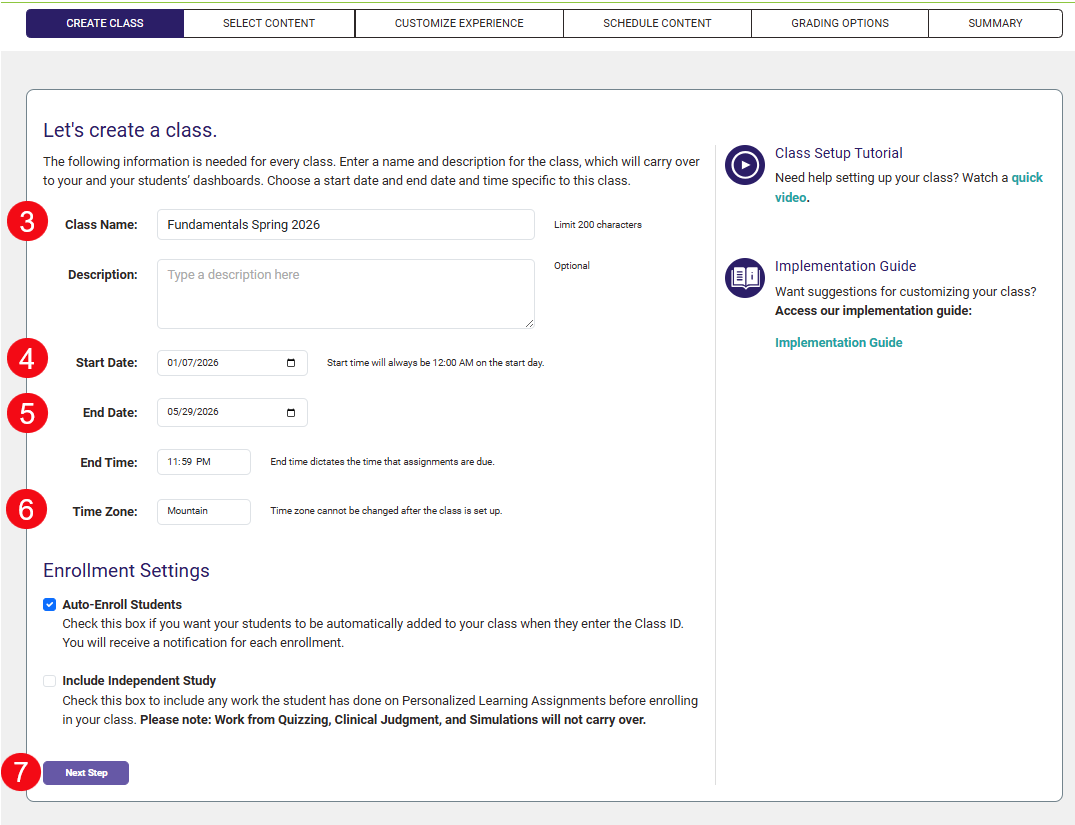
 

A screenshot of the Class Setup page with red numbers highlighting the options for the Class Name (3), Start Date (4), End Date (5), Time Zone (6) and Next Step button (7).


Your cloned class will automatically carry over all of the course settings selected for your original course, under the "Select Content," "Customize Experience," and "Grading Options" steps in its Class Setup.


Please note that you will need to manually enter new assignment due-dates for your cloned course. To update your course's due-dates, select the "Schedule Content" step in your Class Setup. For further guidance on updating assignment Start Dates and End Dates, consult the "Schedule Content" section of our Davis Advantage "Create a Class" article.


A screenshot of the Class Setup screen with a red box and arrow highlighting the Schedule Content option.


Your cloned class will have a new Class ID.
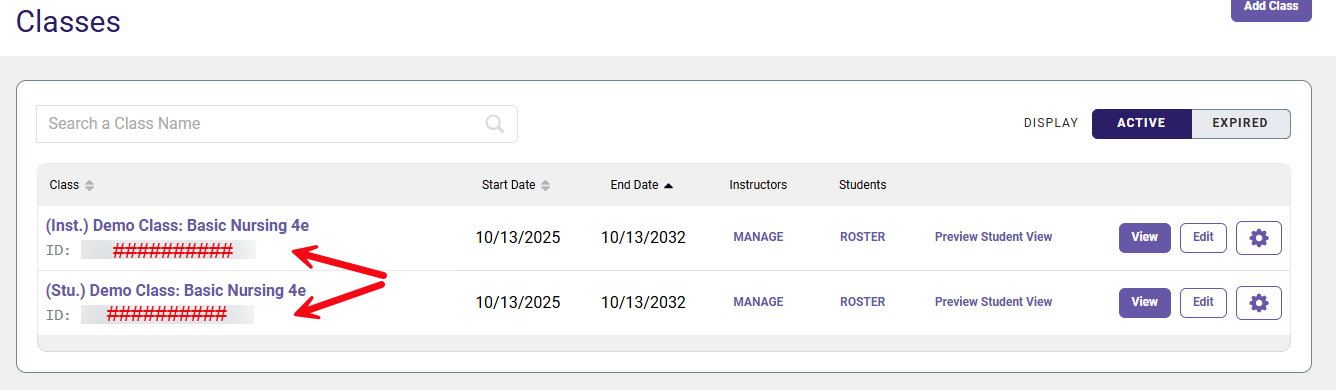
 

A screenshot of the Classes page with red arrows highlighting the Class ID field.

scroll to top icon