


Simulation Assignments are immersive and realistic video-based assignments designed to build clinical judgment skills, and to help students learn how to provide safe and effective care. These assignments use interactive decision points and branching logic based off student choices to mimic real-life patient care scenarios.
Simulation assignments must be completed in one sitting. If a student exits the page, their progress will not be saved.
Simulation Assignments will be available for Fundamentals and Medical-Surgical texts in July 2025, and for additional texts in December 2025.
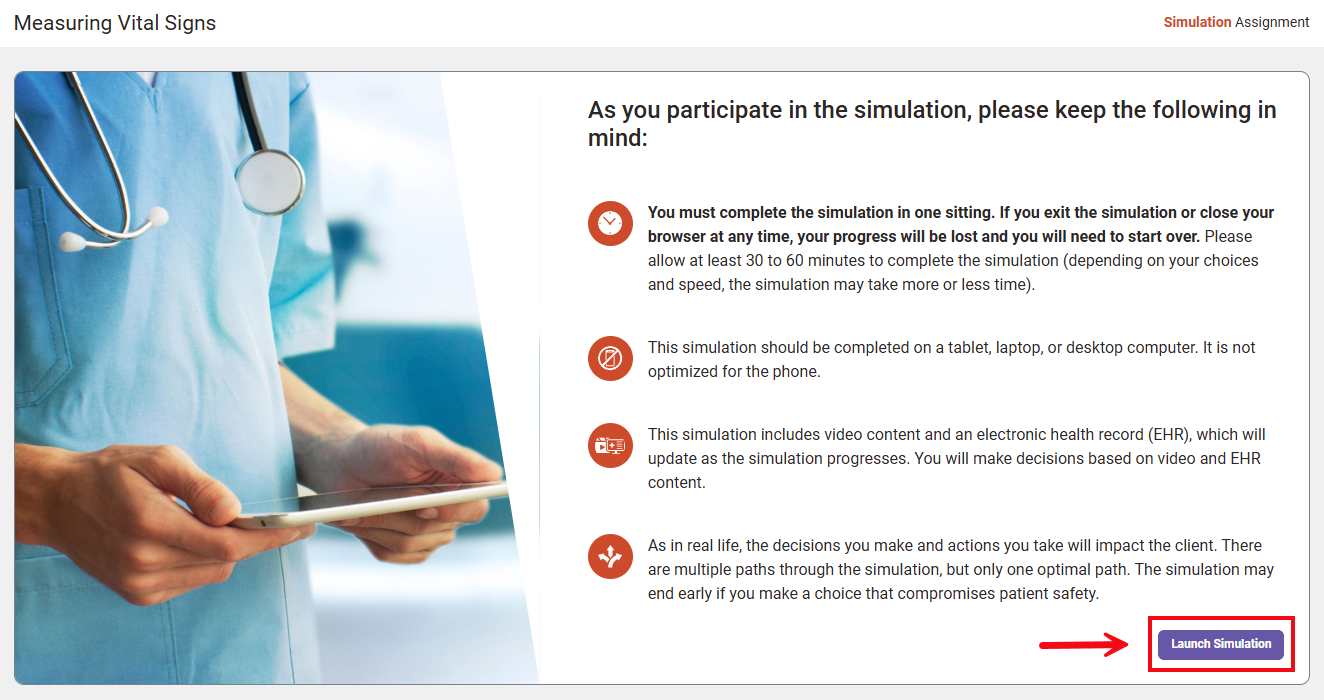
Every simulation assignment opens on a launch screen which provides general instructions for students. Clicking “Launch Simulation” starts the immersive experience.
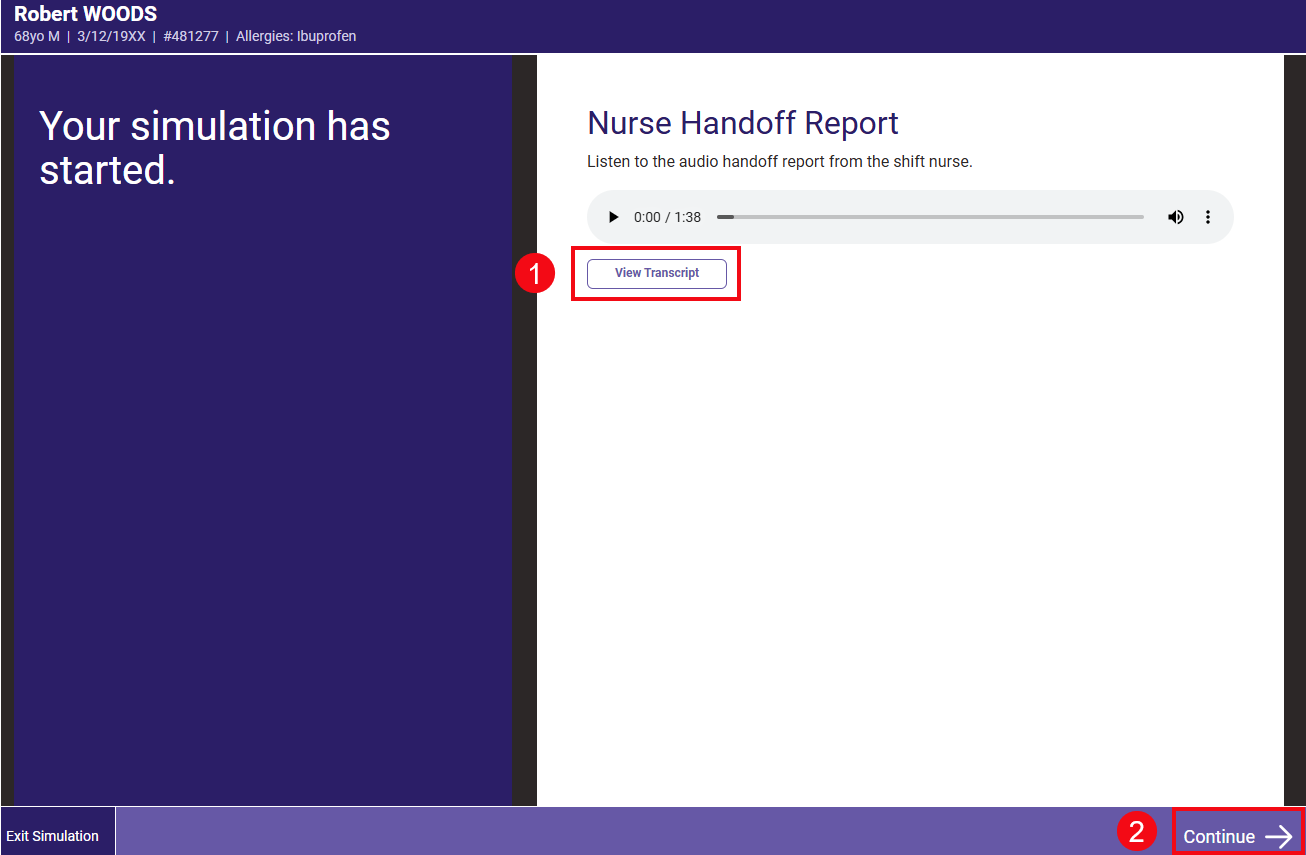
The simulation begins with an audio nurse handoff report in SBAR format to orient the student to patient information from the previous shift. Students may listen to and/or read the report. To read the report, click the View Transcript button (1). After listening to or reading the report, click Continue to move to the next screen (2).
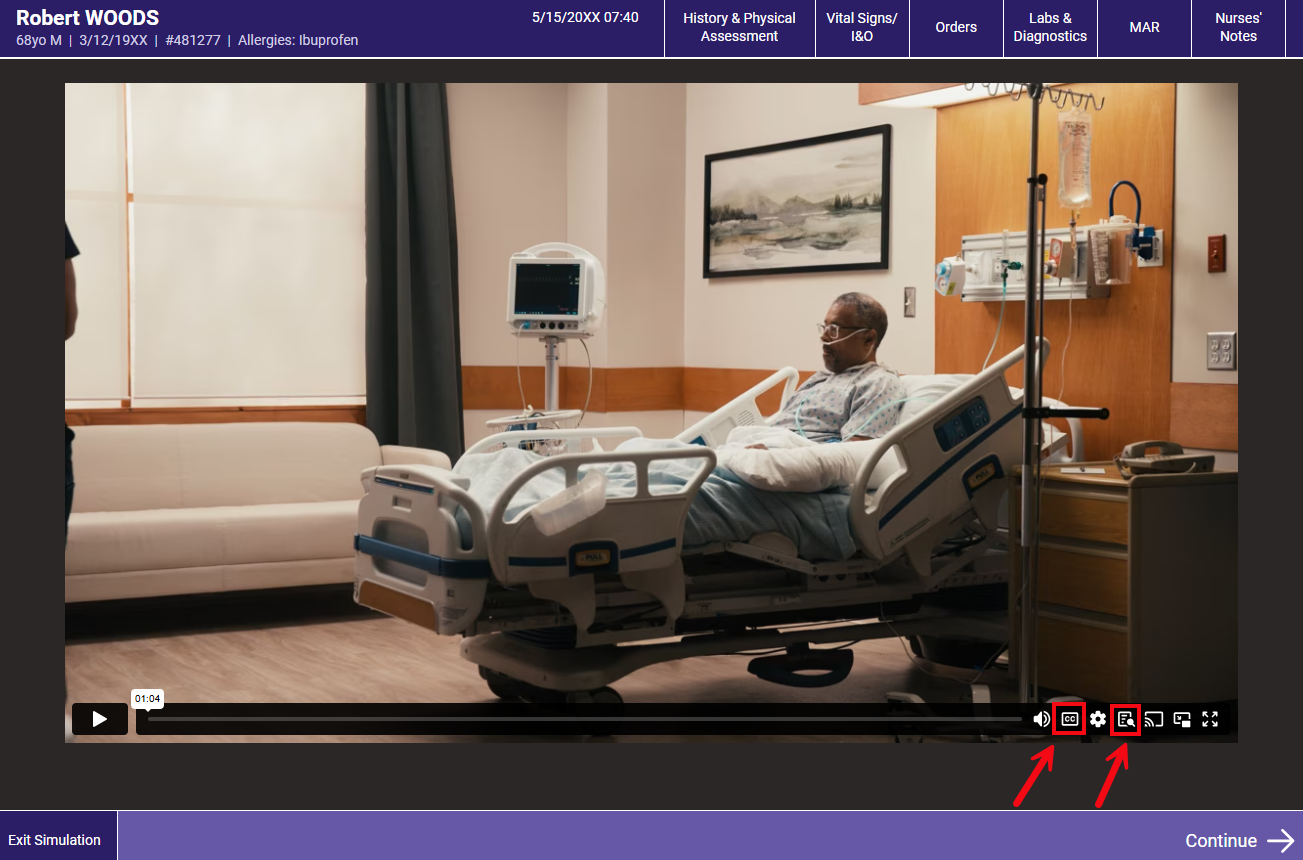
Full screen videos are the starting point for each question. These videos show interactions with patients that mimic a real-life hospital setting and demonstrate proper skill technique. The videos will show the patient’s response to decisions made by the student. Use the CC (Closed Caption) icon to see closed captions, and/or the Transcript icon to view the transcript.
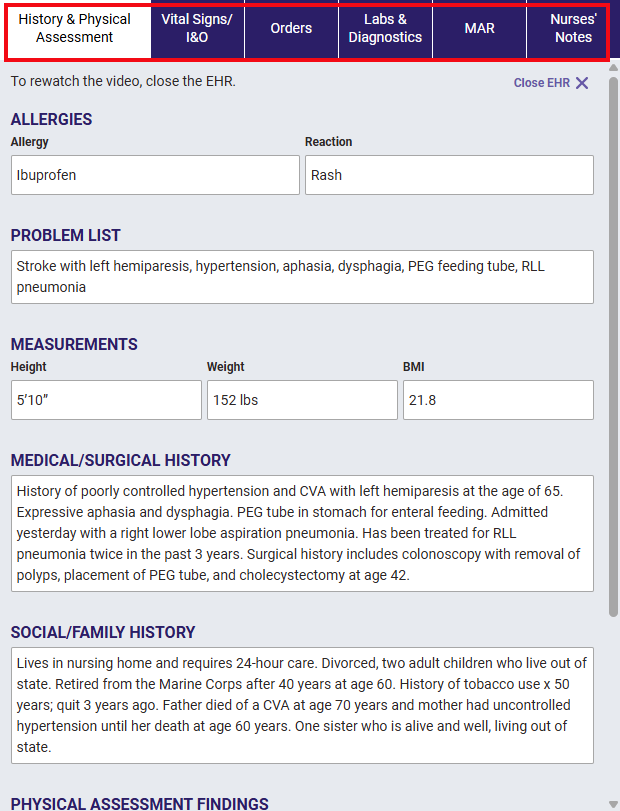
After students have viewed the video, they can navigate through the EHR or continue to their decision point. The patient information in the EHR updates and includes date/timestamps. The six EHR tabs evolve based on student decisions and simulation progress. The EHR can be reviewed as needed.
Each question is a decision point for the student. Students may rewatch the video or review the EHR to help guide their decisions. The questions require strong background knowledge, assessment of the patient’s specific needs, and clinical decision making. The questions may prompt the student to make clinical decisions and know the proper technique for interventions. Students’ decisions during the simulation may lead to different branches, including different videos, EHR updates and questions.

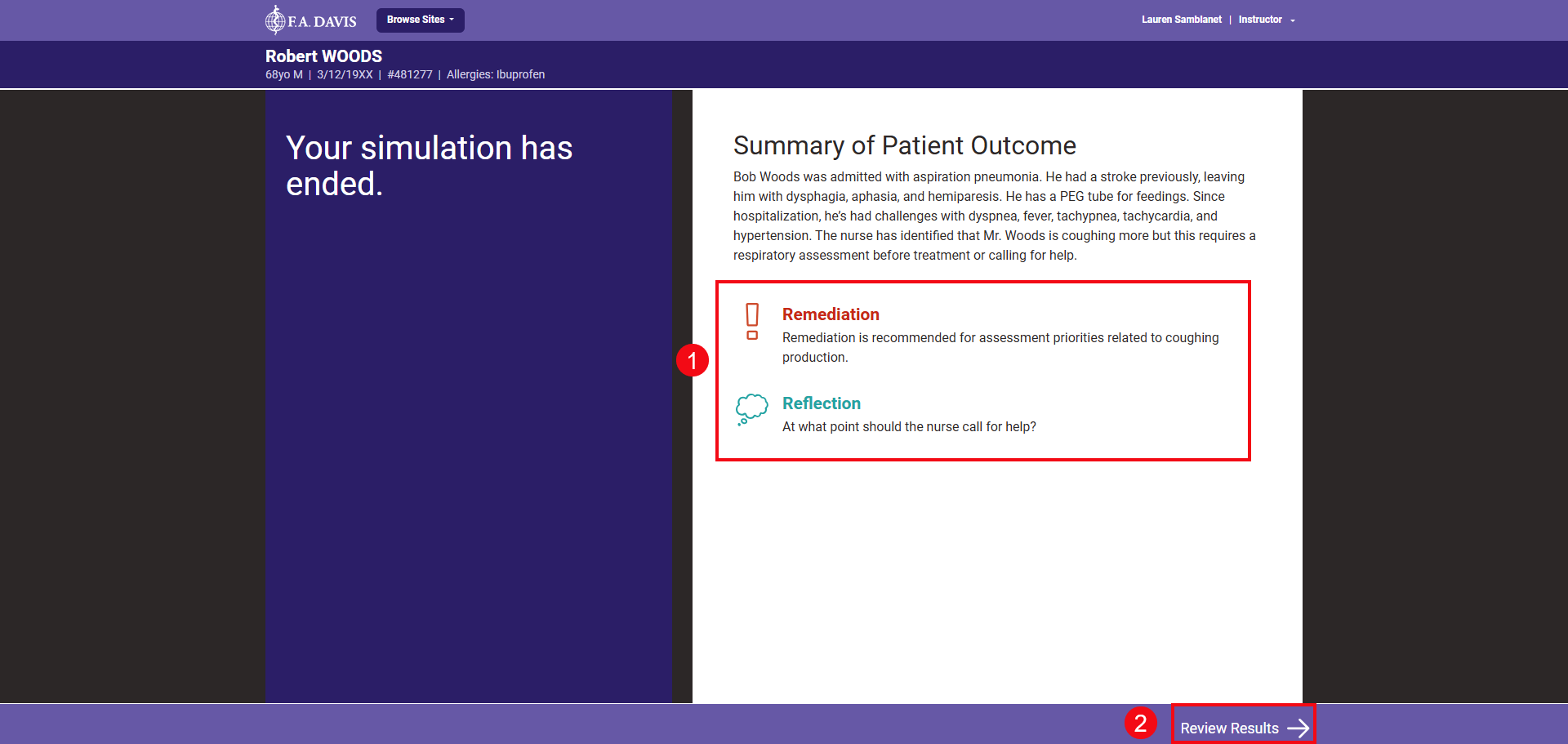
The case closing screens indicate the end of the simulation. This page includes a short summary of the patient outcome. Remediation and reflection are included when the simulation ends early because a student didn’t finish with an optimal answer (1). Clicking Review Results takes students to their results page (2).
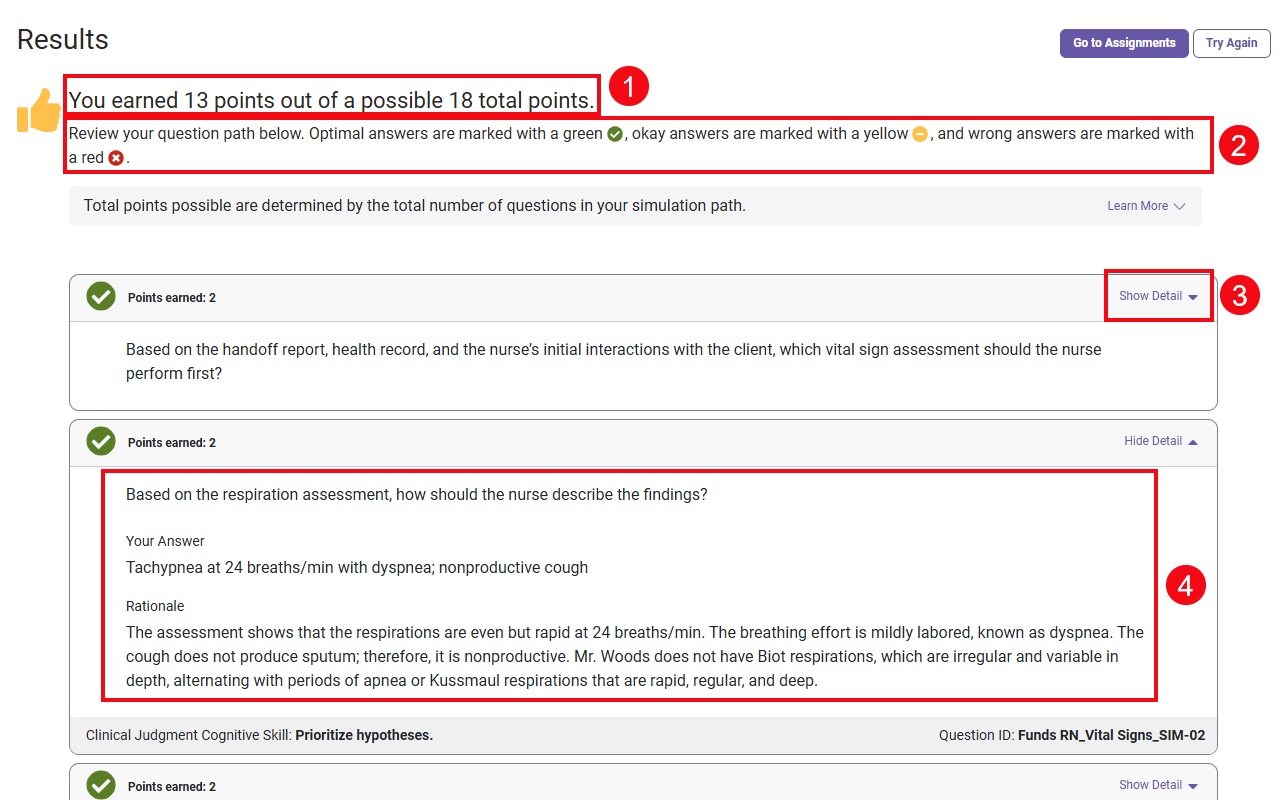
Simulations are completed for a participation grade; however, students and instructors can view competency. The score is the number of points earned out of the total points possible, which is determined by the total number of questions in the student’s simulation path (1). Simulations use a scoring system that assigns a point value to each answer option. Optimal answers are worth 2 points, satisfactory but not ideal answers are worth 1 point, and wrong answers are worth 0 points (2). Each question that the student answered shows on the results page. To view feedback, click Show Detail by each question (3). Feedback includes the question stem, the student’s answer and the rationale for the chosen answer (4).
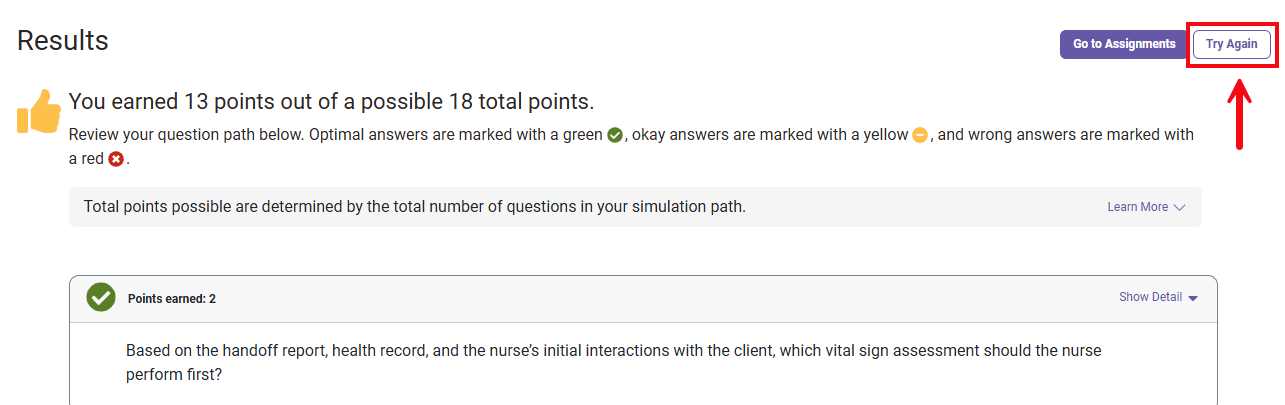
Students may also retake the simulation by selecting the “Try Again” button.
Students may review their results at any time by visiting their Assignments page or their Personalized Learning Plan (PLP).

