


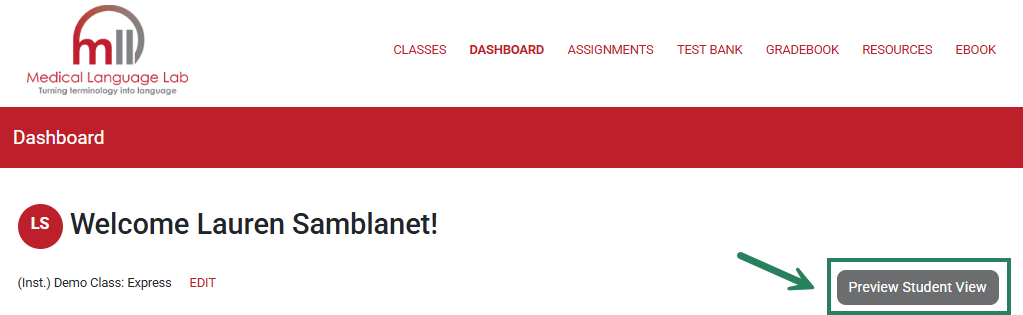
On the Dashboard, click the Preview Student View button to see the Student Experience as determined by your class settings (selected content, due dates, etc.).
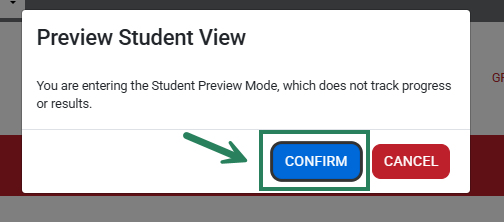
A pop-up will appear. Click Confirm to open the student view.
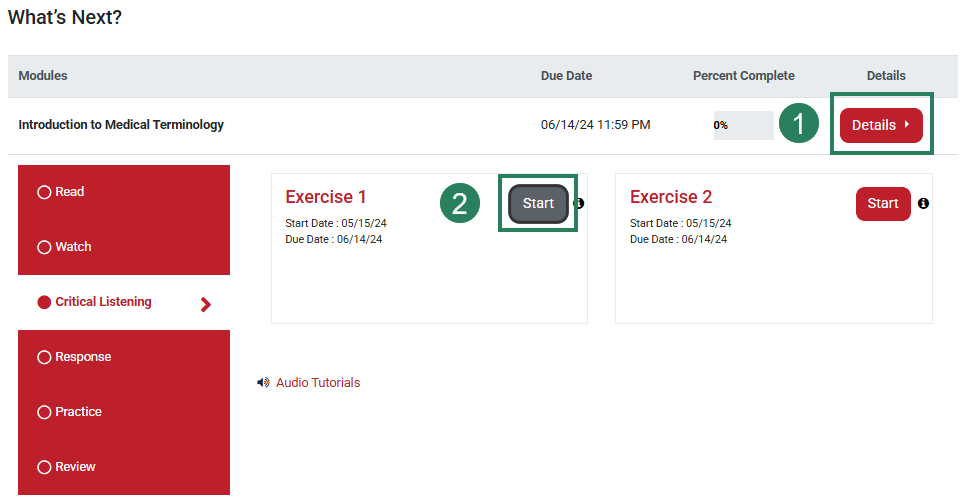
The student view will open and reflects what enrolled students will see after they have entered your unique Class ID. To view a module as a student, select the Details button (1), then click the Start button (2) next to the assignment.
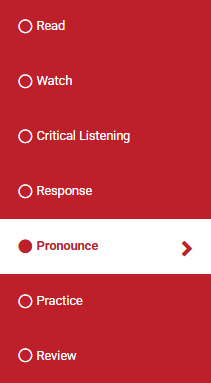
Browse through the student exercises and activities. Each module in Medical Language Lab contains multiple activities. The activities within each module can be customized by your instructor and may vary depending on the text.

After you’ve finished browsing through the Student View, click "To close the preview click here" in the red message banner at the top of the page to close the tab.

Please note that all modules and their content, including practice exercises, can also be viewed by selecting Edit for a created class (when on your Classes page), and navigating to the Customize Content tab.

